Prepaid travel certificates, from template to booking
A members-only travel club wanted to sell prepaid nights that members redeem later. I designed the certificate program on both sides: the back office that defines and controls it, and the member's path from catalogue to booking.
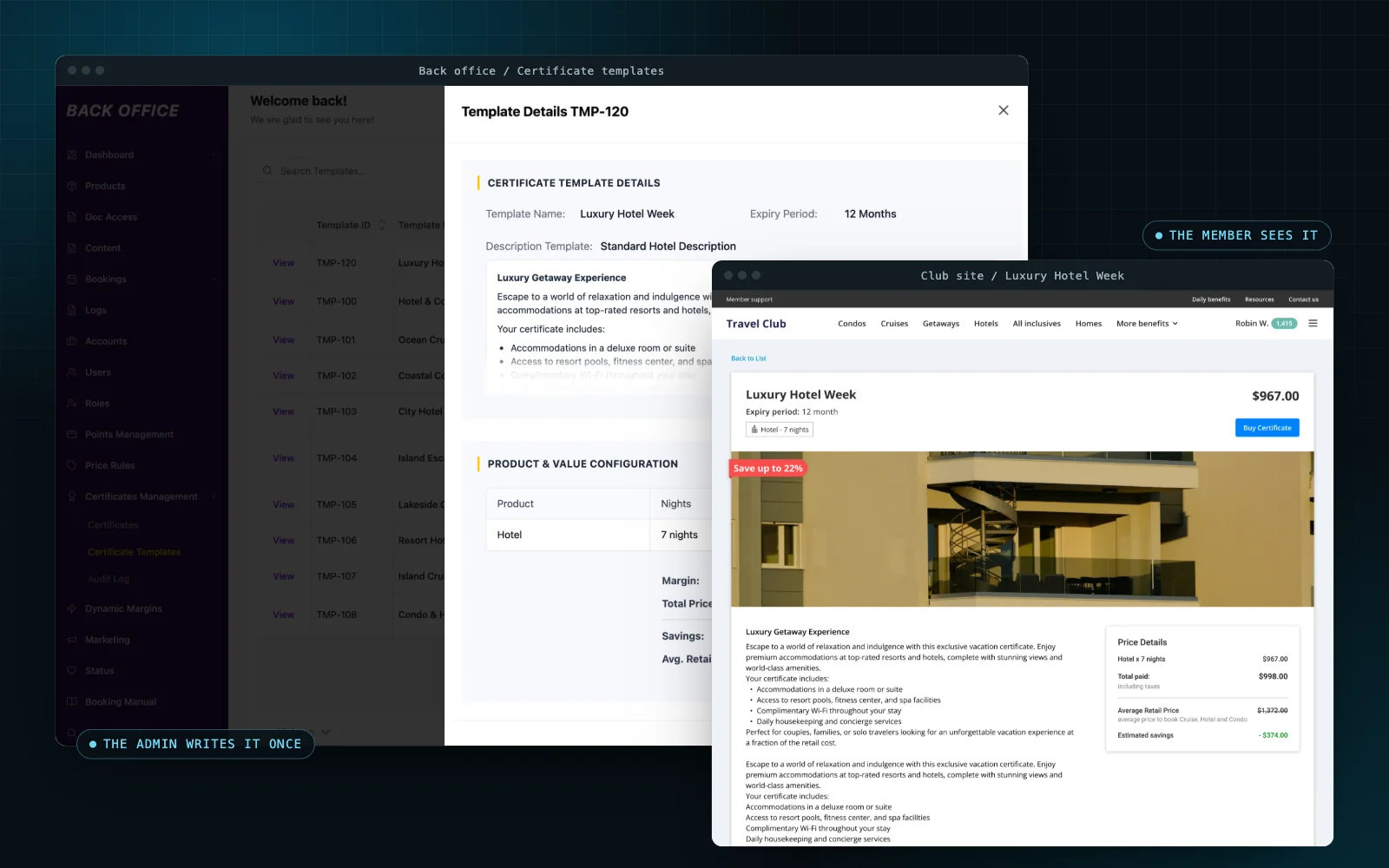
Decision summary
One certificate, designed end to end. The business publishes a template, the member keeps the certificate in a wallet, and the booking flow shows only what is left to pay. Live on the club's sites.
01 / The product
Pay now.
Book the trip later.
A members-only travel club sells hotels, condos and cruises at member rates, through many branded club sites. It added a new product: a prepaid travel certificate. Members buy a bundle of nights now, in full or in instalments, and book the stay later.
Luxury Hotel Week
- What it covers
- Hotel, 7 nights
- What it costs
- $967, in full or in instalments
- When it can be used
- Any stay within 12 months
- What is left to pay
- Taxes and fees, at booking
The member
On a club site
- Buys a certificate
- Keeps it in MyWallet
- Books with it once the dates are known
The admin
In the back office. A business user, not an engineer.
- Defines templates and publishes them to club sites
- Issues certificates by hand
- Manages them after the sale
- Watches what the program still owes
What made it hard
-
Prices already meant savings. Listings and checkout showed member rates against public prices. With a certificate, part of the stay is already paid.
-
Money moves before travel. Once a member pays, their terms cannot shift, and the business must explain any later change.
-
One template, many club sites. Whatever the admin writes appears on member pages across the network.
My part
Mine
- The certificate feature on both sides: every new page, state and change to the booking flow
- The new back-office shell it lives in
- A working back-office prototype in Figma Make, for client demos and developer handoff
Already there
- The club sites and their booking engine
- The legacy back office
I was the only designer on the feature. AltexSoft's business analysts and project managers wrote the stories from the client's requirements, and the development team built them.
02 / One lifecycle
One object,
seen from both sides.
Before drawing screens, I fixed the model every screen reads from. A template is what is for sale. A certificate is one sold or issued copy of it, with one item per product type. Each has its own states, and every state has a place where someone sees it.
Template
What is for sale. The admin writes it once.
Off becomes Live when: published, with a photo and at least one club site.
Other ways out
Live becomes Off when: edited or switched off, after a warning that counts its club sites.
Certificate
One sold or issued copy of a template.
Pending becomes Active when: assigned, paid in full, or last instalment paid. Active becomes Partially redeemed when: one item redeemed. Partially redeemed becomes Redeemed when: every item redeemed.
Other ways out
Pending, Active or Partially redeemed becomes Expired when: its validity ends.
Pending, Active or Partially redeemed becomes Cancelled when: the admin cancels it, after a confirmation.
A certificate starts as Pending when it has no recipient yet, or when only a down payment is paid. Paid in full, it starts as Active.
Item
One product type inside a certificate, with its nights.
Available becomes Redeemed when: used once, against one booking.
Other ways out
Available becomes Expired when: the certificate's validity ends.
While its certificate is pending, an item shows as Pending and offers Preview instead of Redeem.
Three ways a certificate is created
- ManualIssued in the back office
- Club siteBought by a member
- APICreated by another system
Where each state shows up
| State | Back office | MyWallet | Booking |
|---|---|---|---|
| Pending | Status badge, audit entry | Badge, instalment progress, items offer Preview | Preview: real prices, checkout blocked |
| Active | Status badge | Items offer Redeem | Eligible: prices adjusted, search limited to where it can be used |
| Partially redeemed | Status badge, redeemed items listed | Used items dated, the rest offer Redeem | Eligible for the remaining items |
| Redeemed | Status badge | Every item dated | Not eligible |
| Expired | Status badge | Badge, items dated | Not eligible |
| Cancelled | Status badge, audit entry | Badge, items marked cancelled, no actions | Not eligible |
“Eligible”: a certificate the booking selector may apply.
03 / The template
Define once.
Show it everywhere.
A template is the only place an offer is written: every card and page a member sees renders from it. Here is one being made in the back-office prototype I built. Click the highlighted control to go on, or press Play.
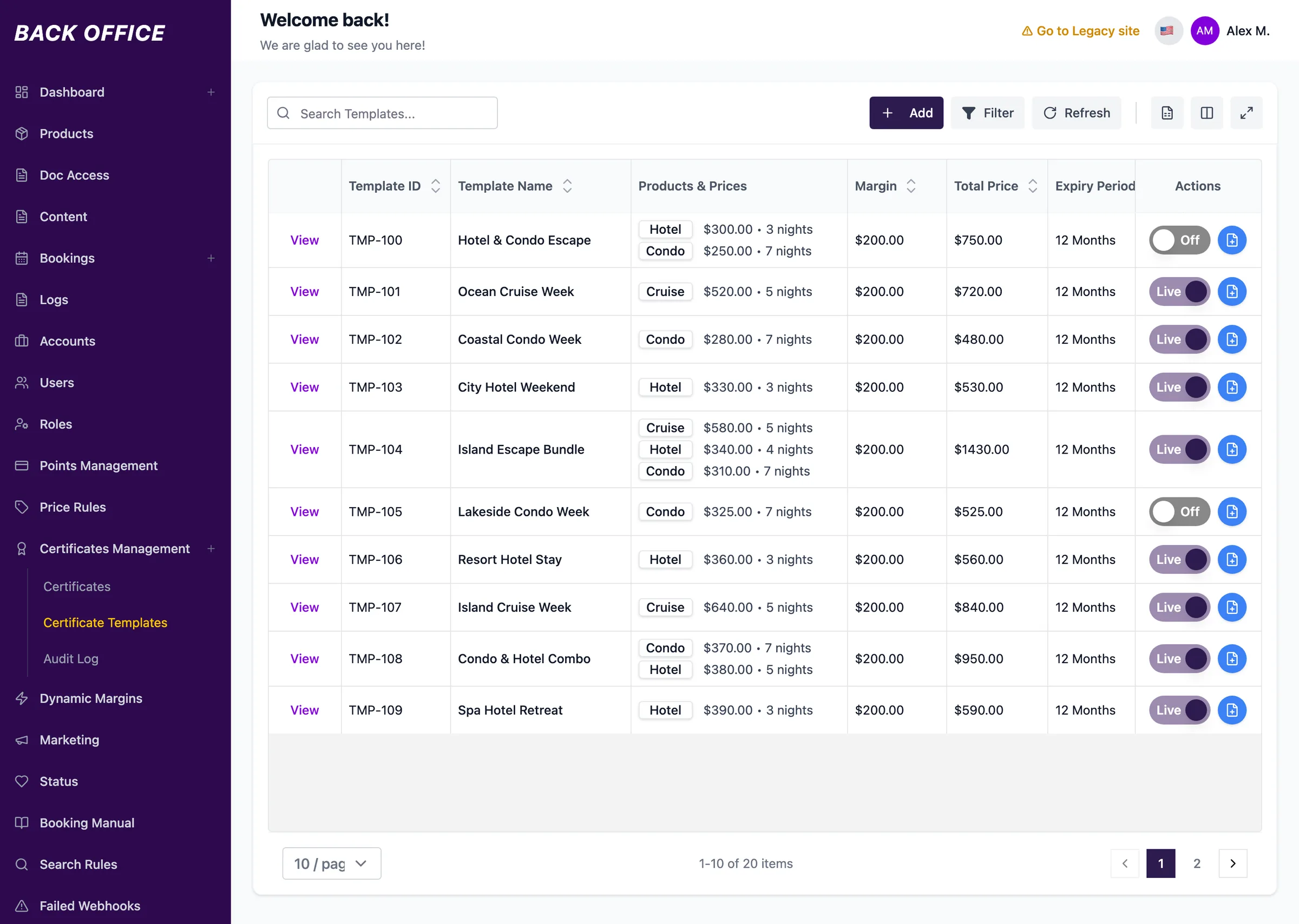
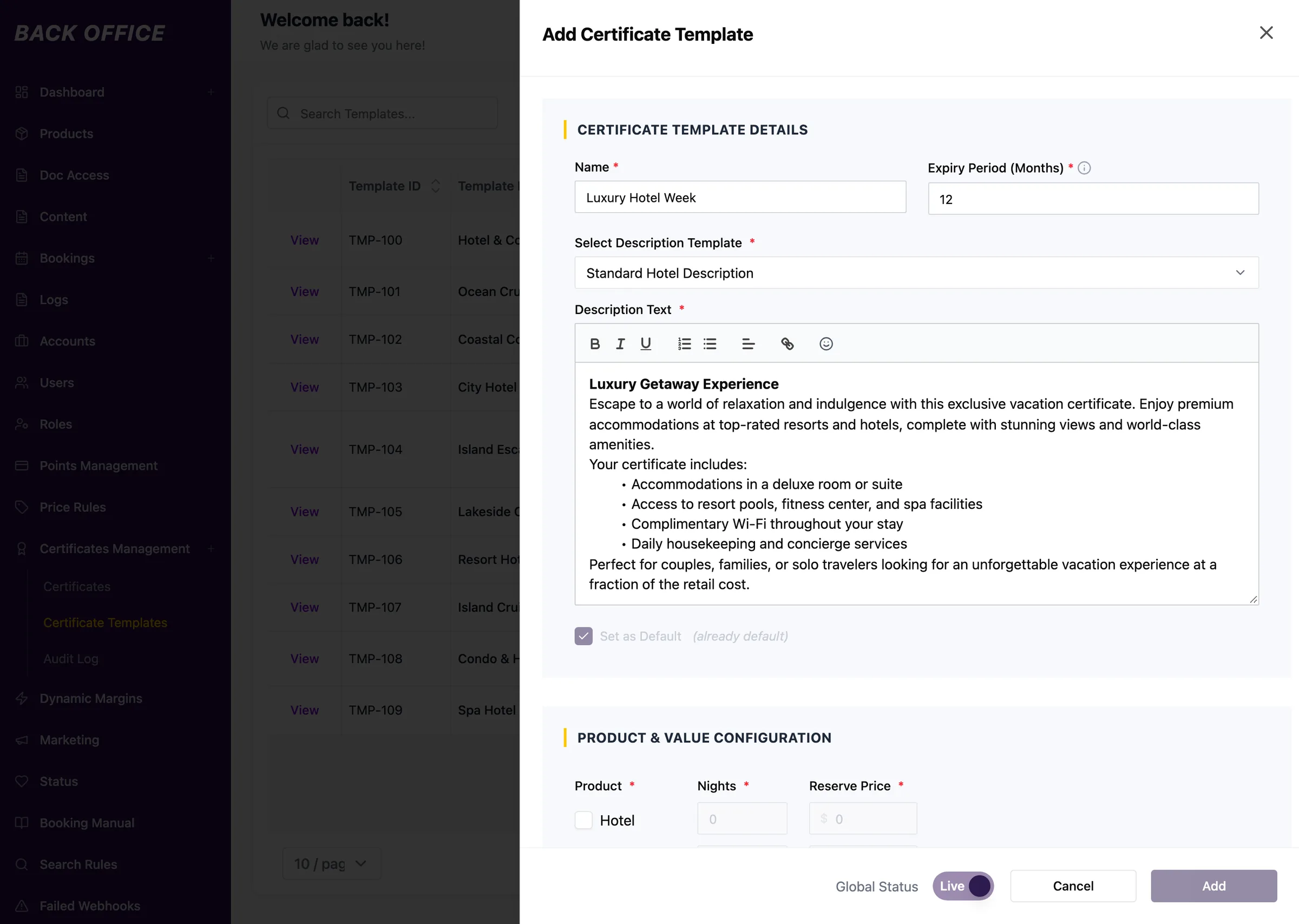
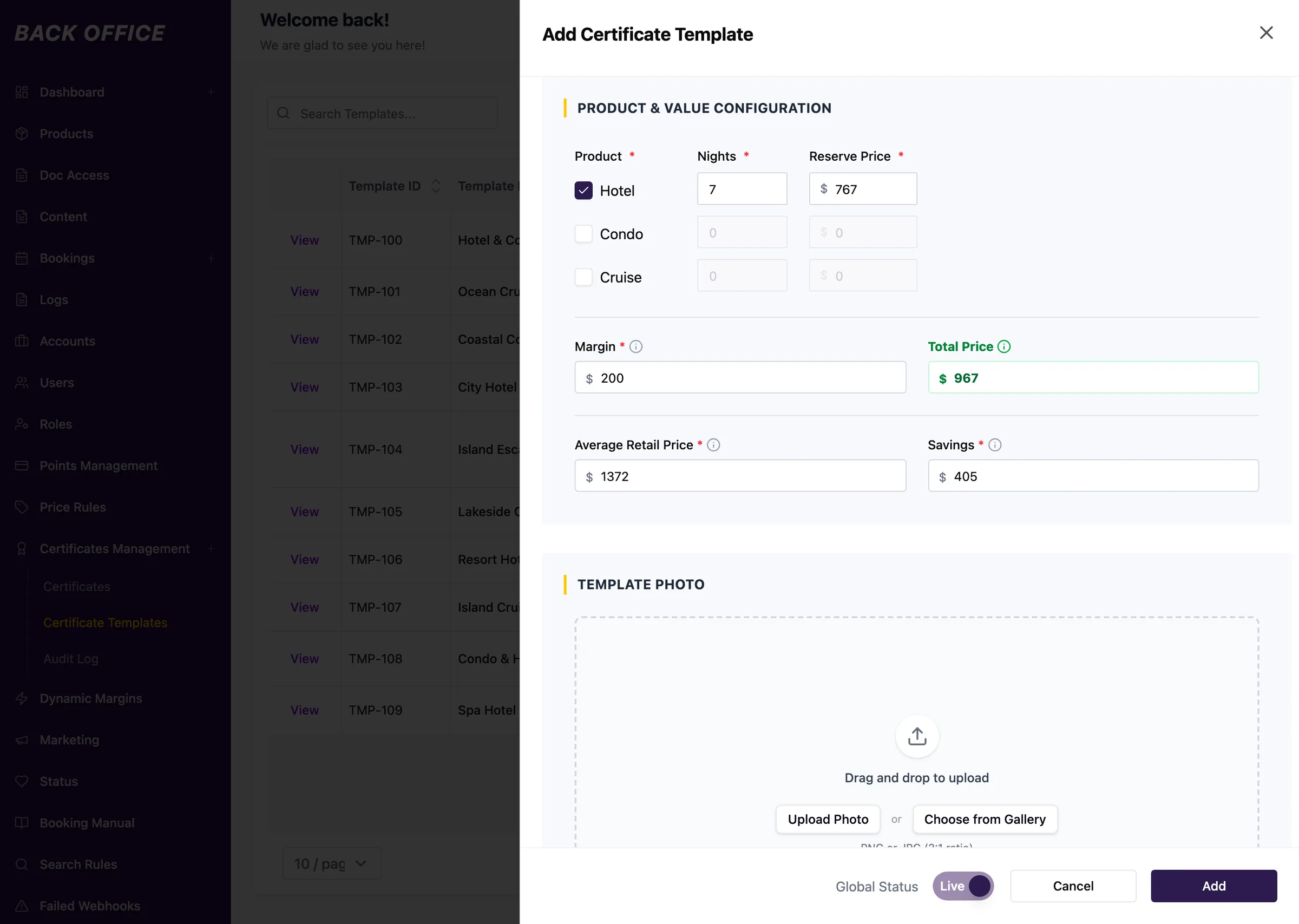
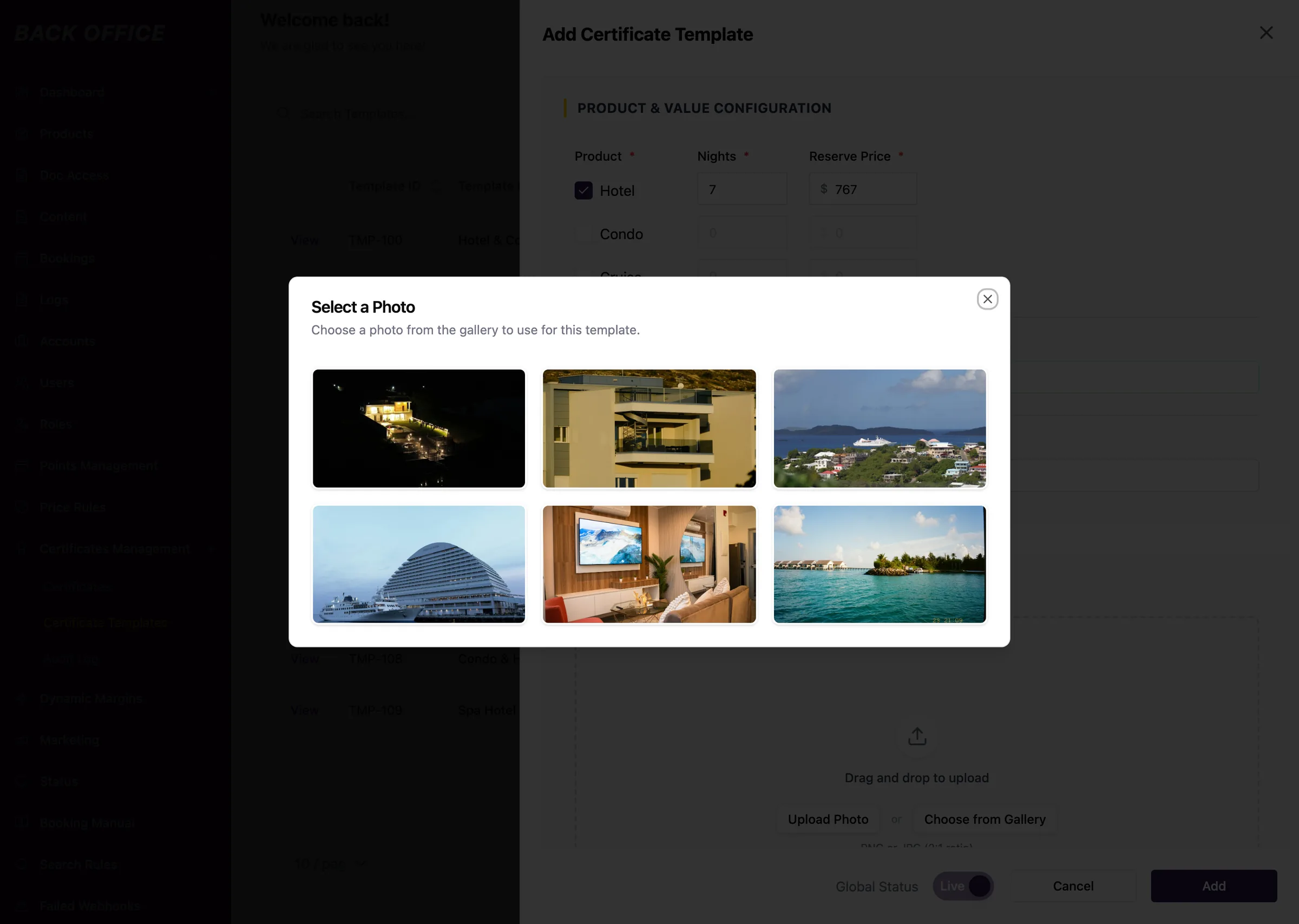
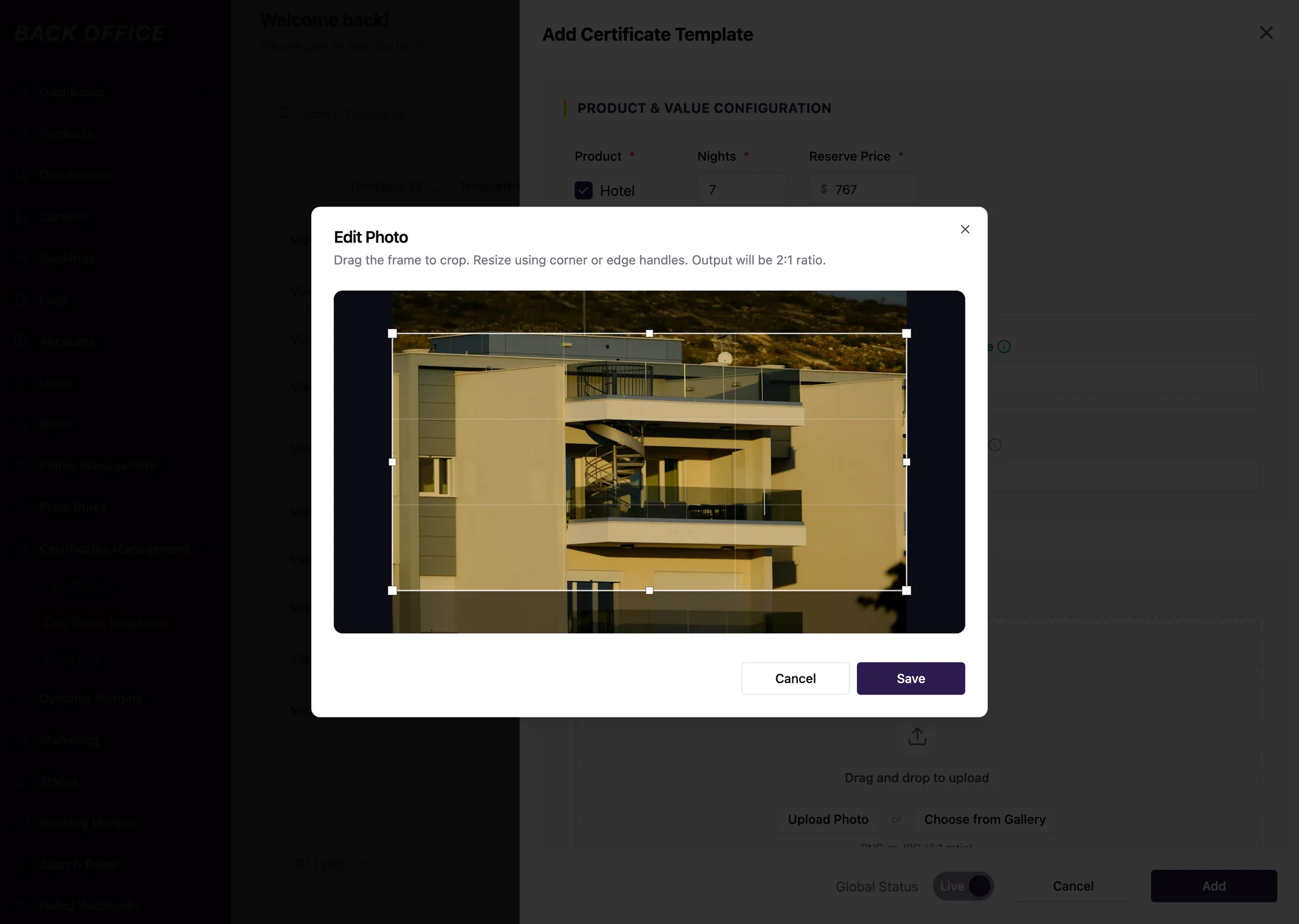
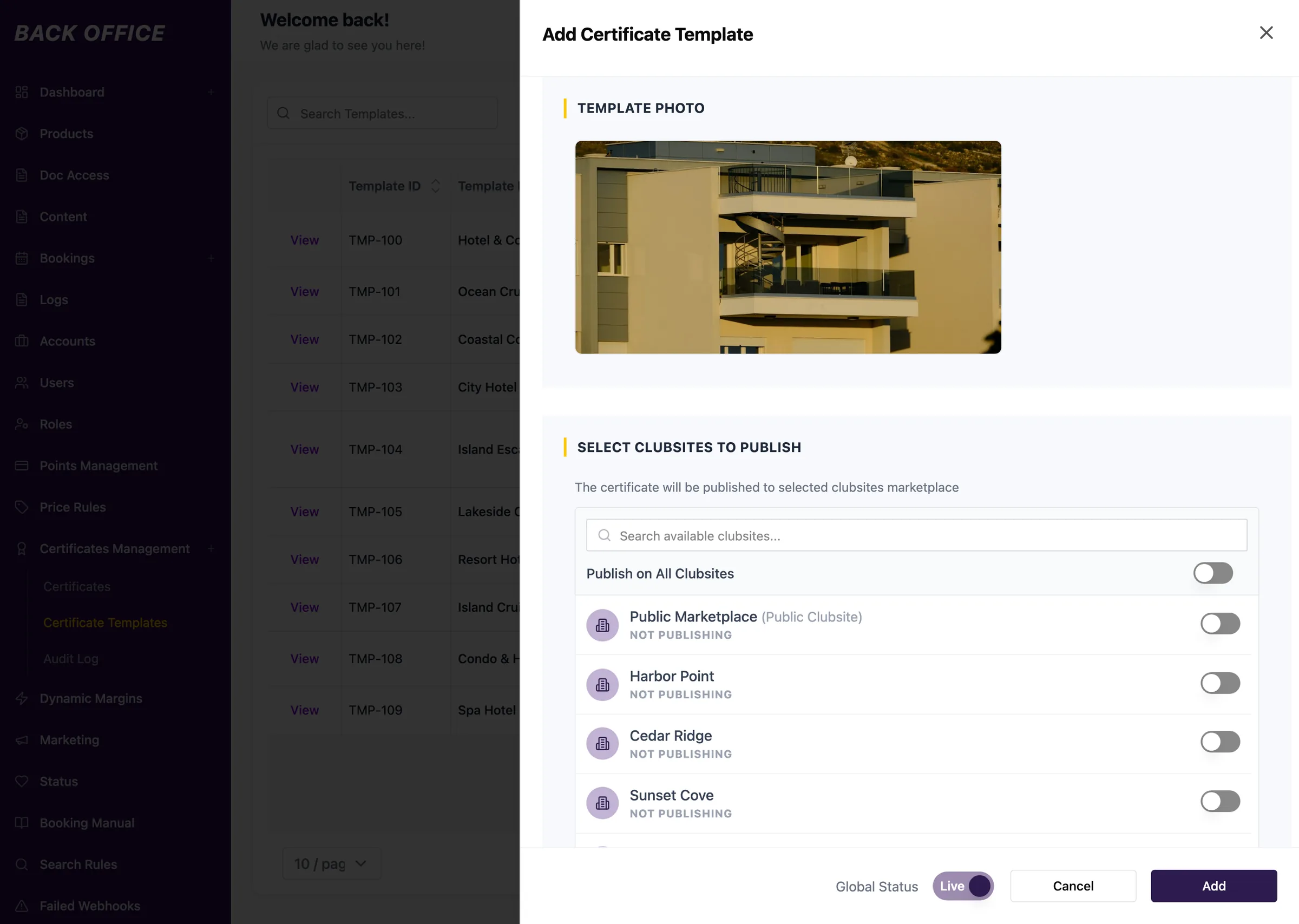
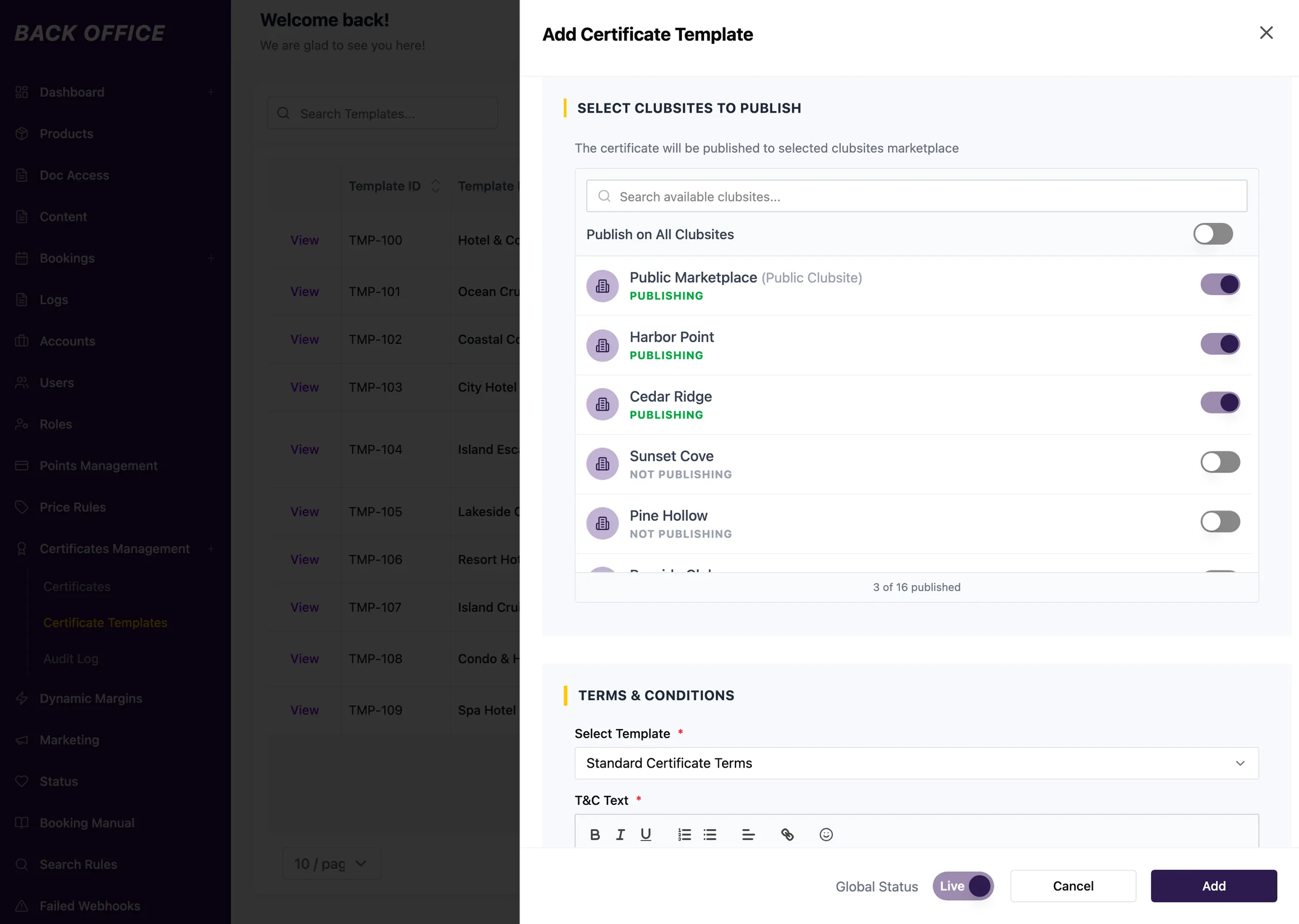
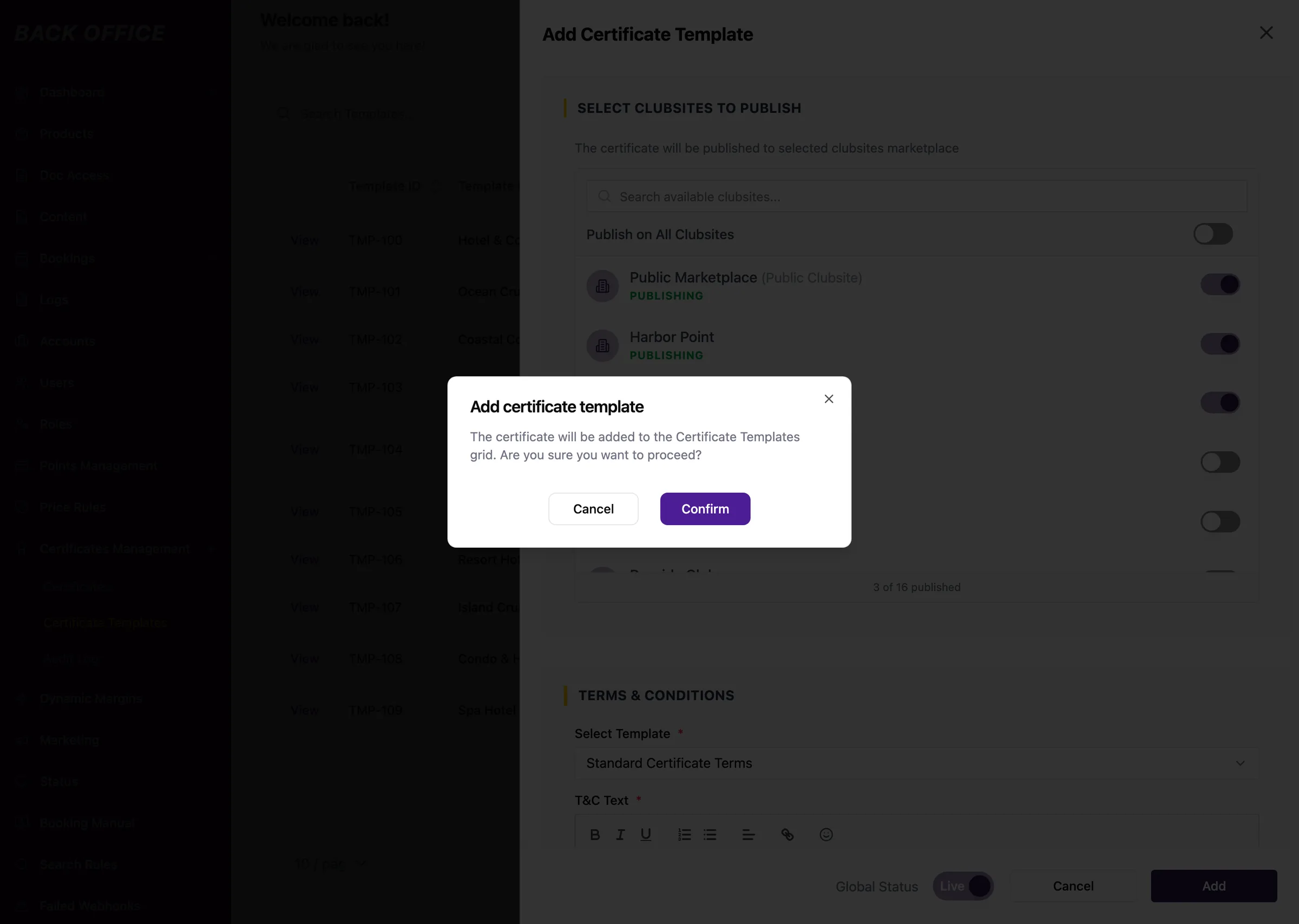
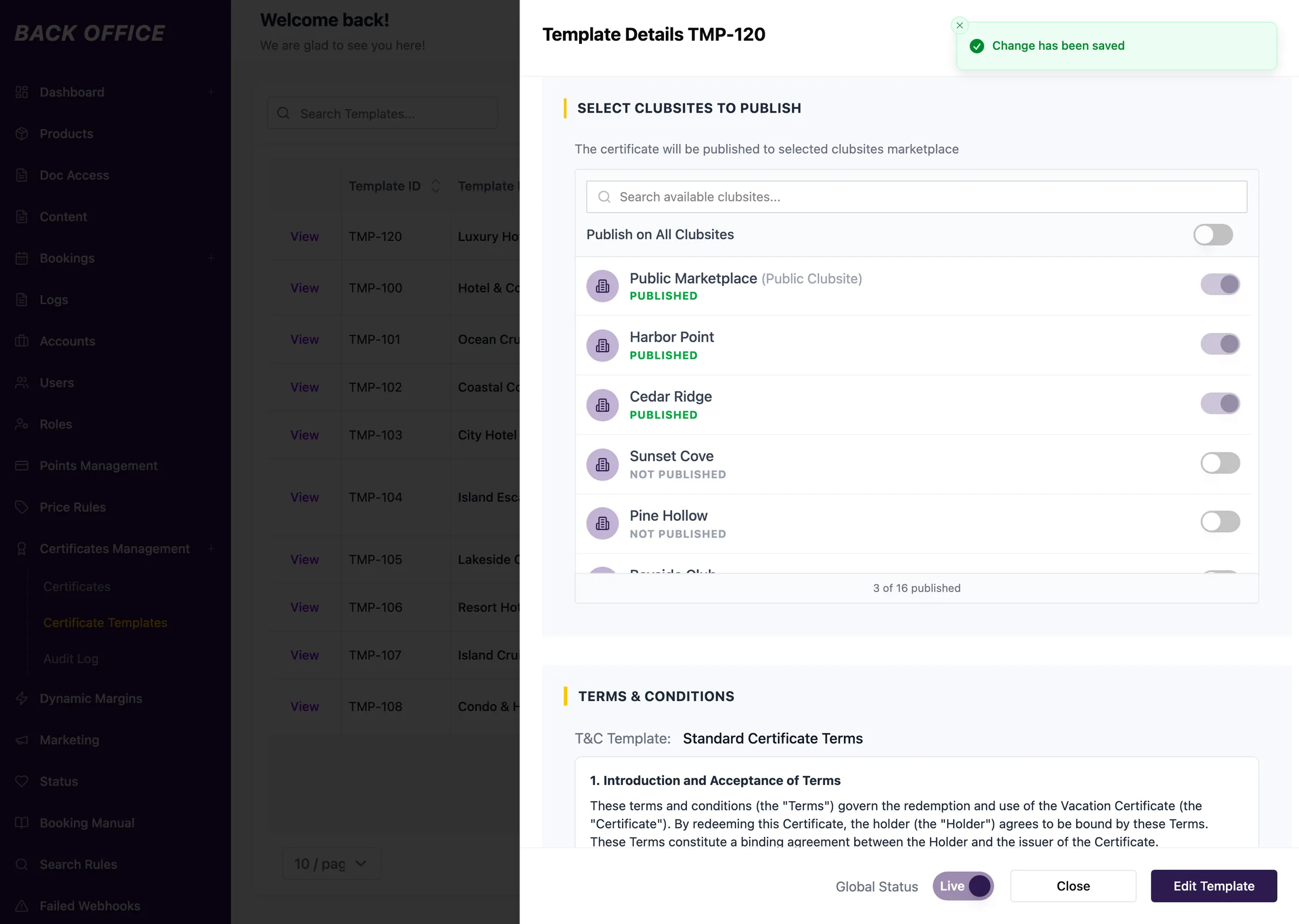
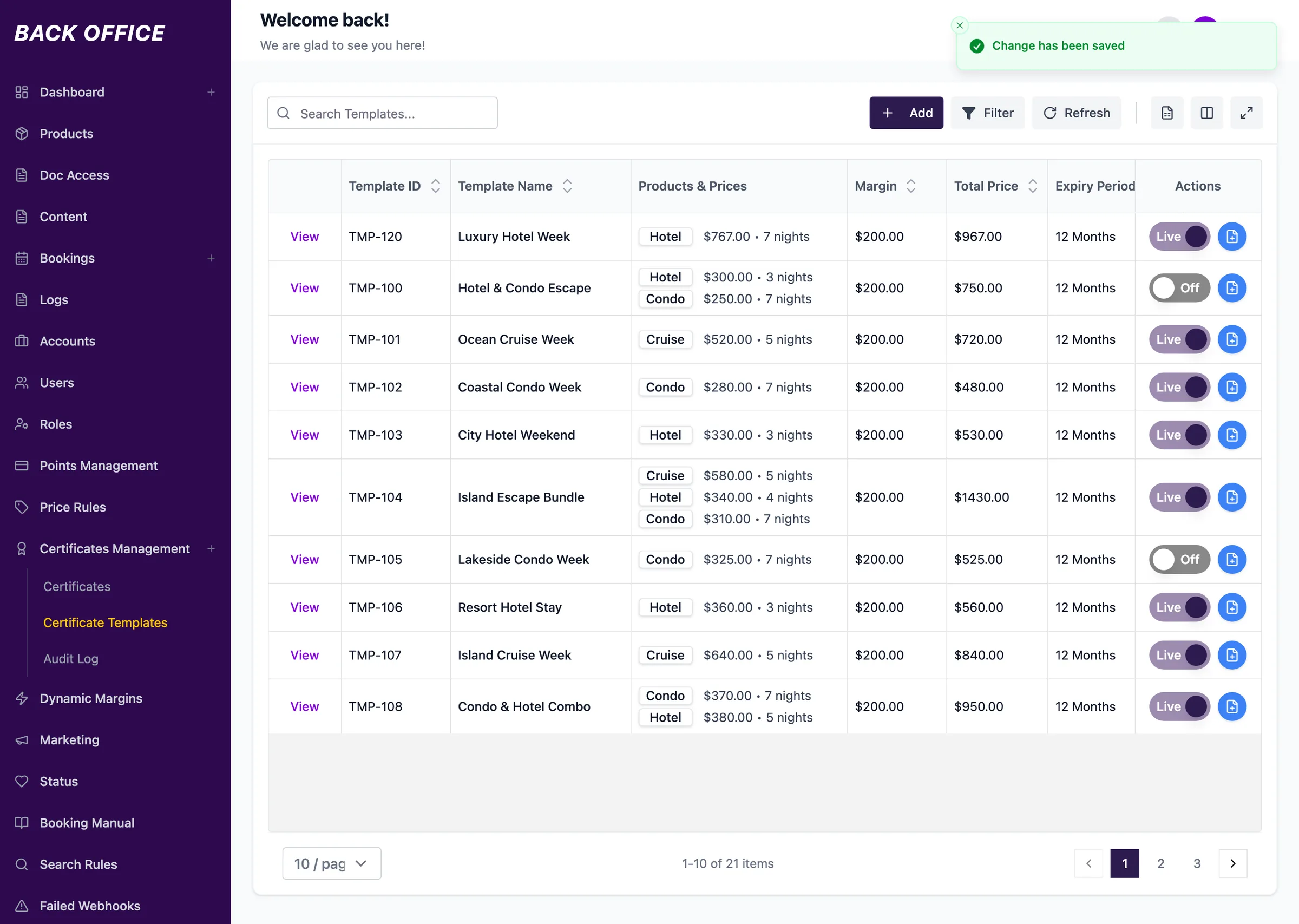
Step 1 of 10
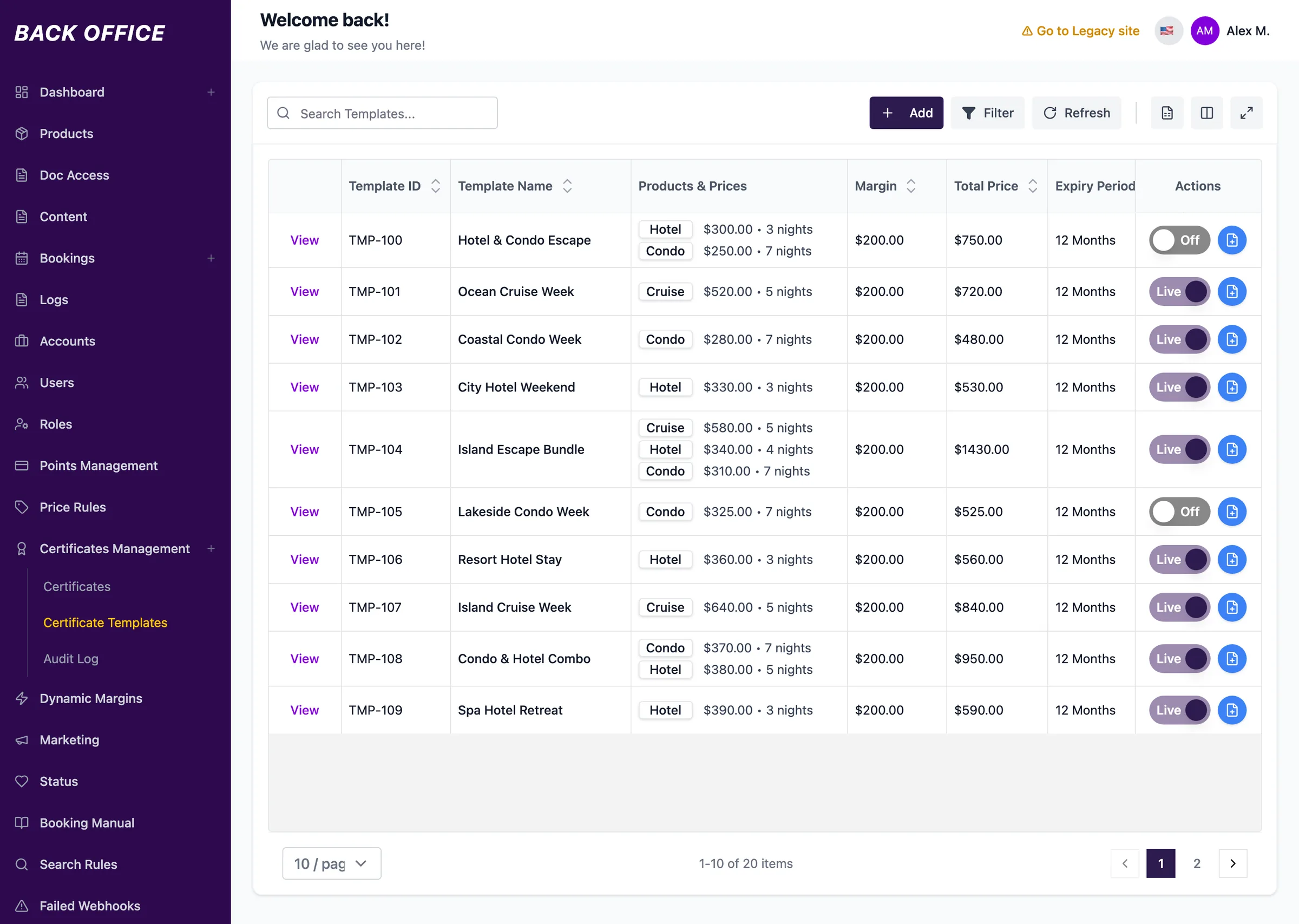
Template list
Every template in one list: products with their reserve prices, margin, total, validity, and a Live or Off switch per row. A new one starts with Add.
Two guards
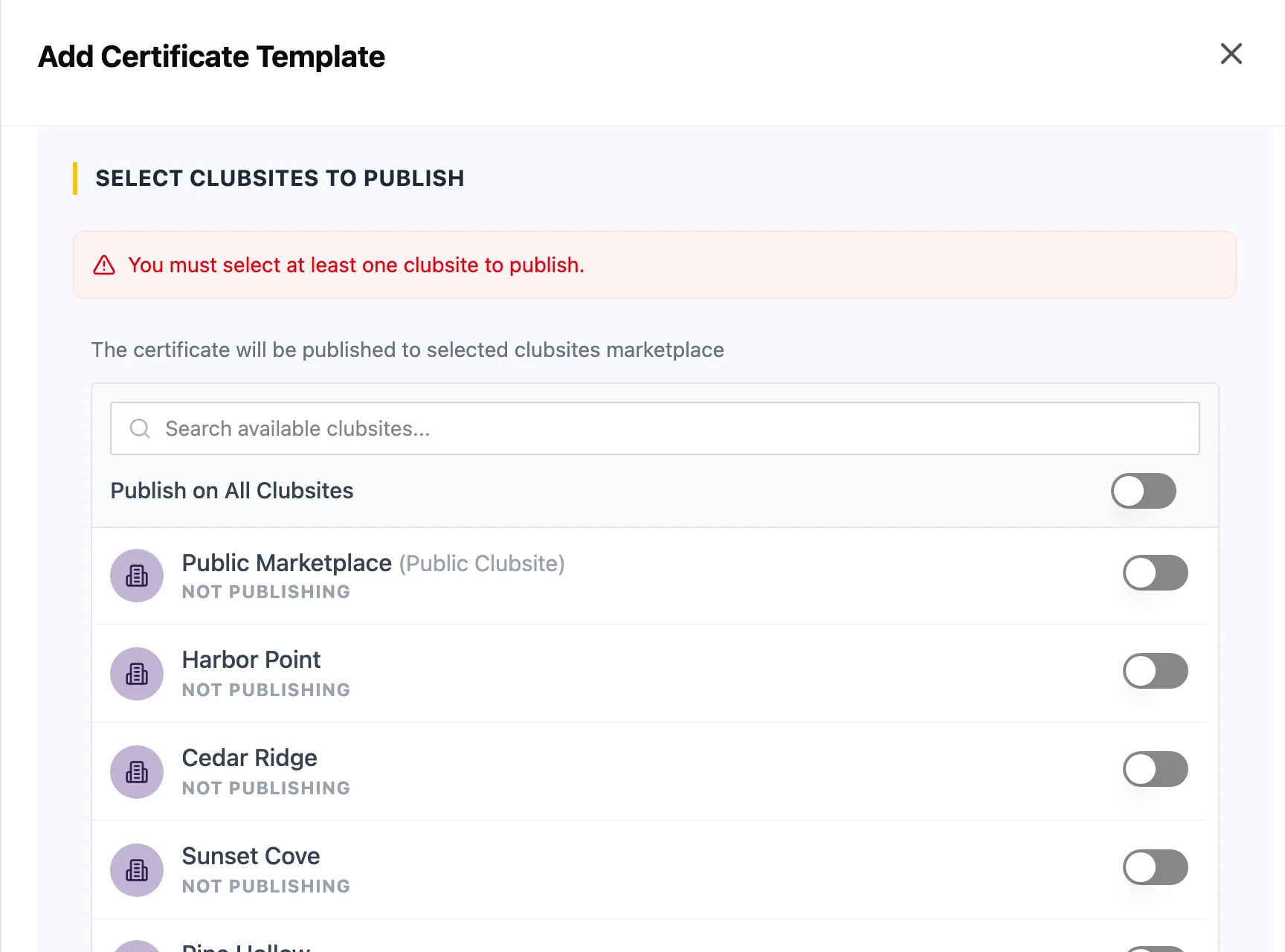
Before it goes live
No photo, no publishing. No club site, no publishing either: switching the global status on with none selected keeps the template Off and says why.
Once it is live
A live template is never edited in place. Editing it, or switching it off, first asks to pause it and counts the club sites it will leave: one template can sit in many catalogues at once.
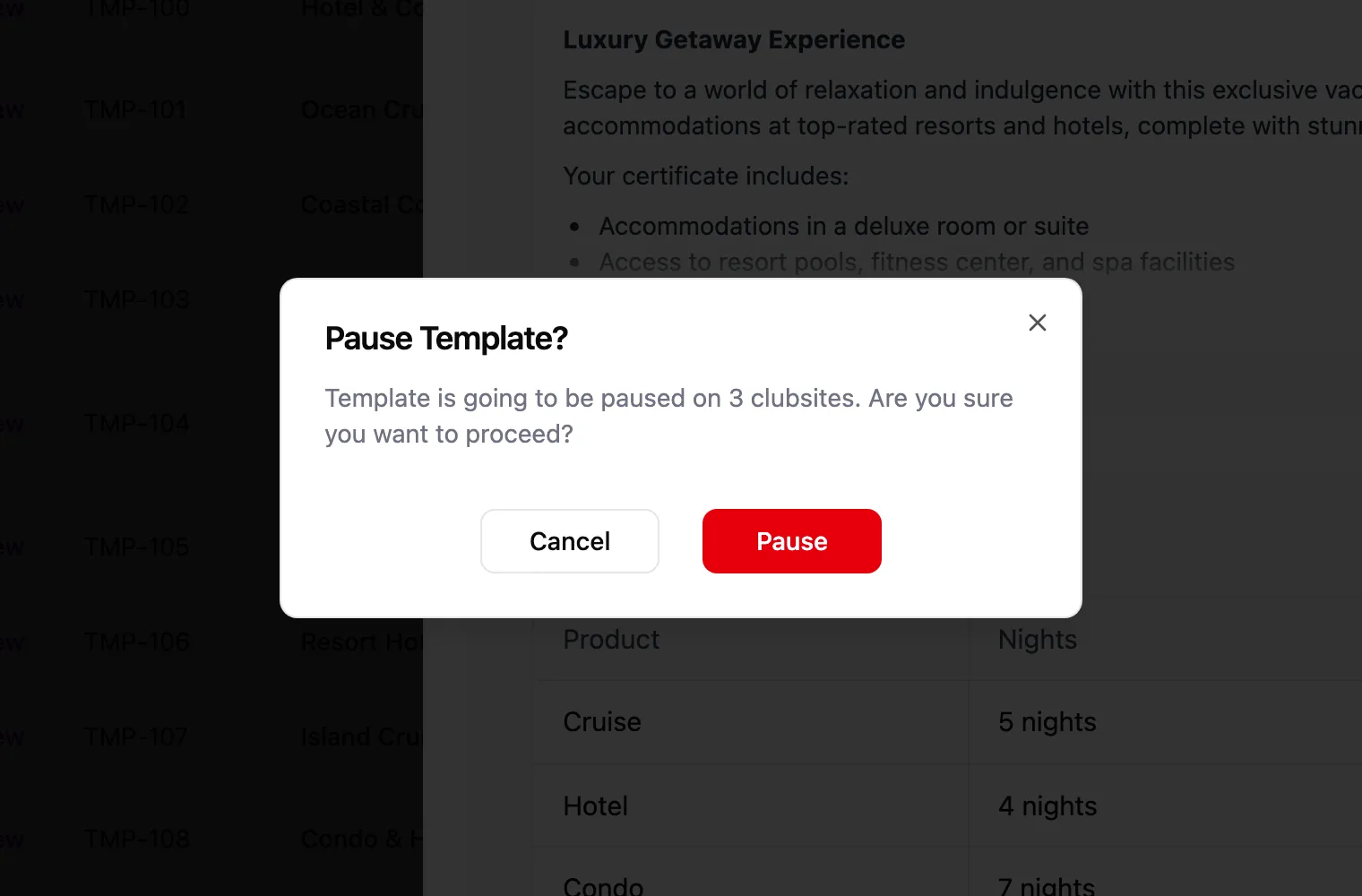
Where the template shows up
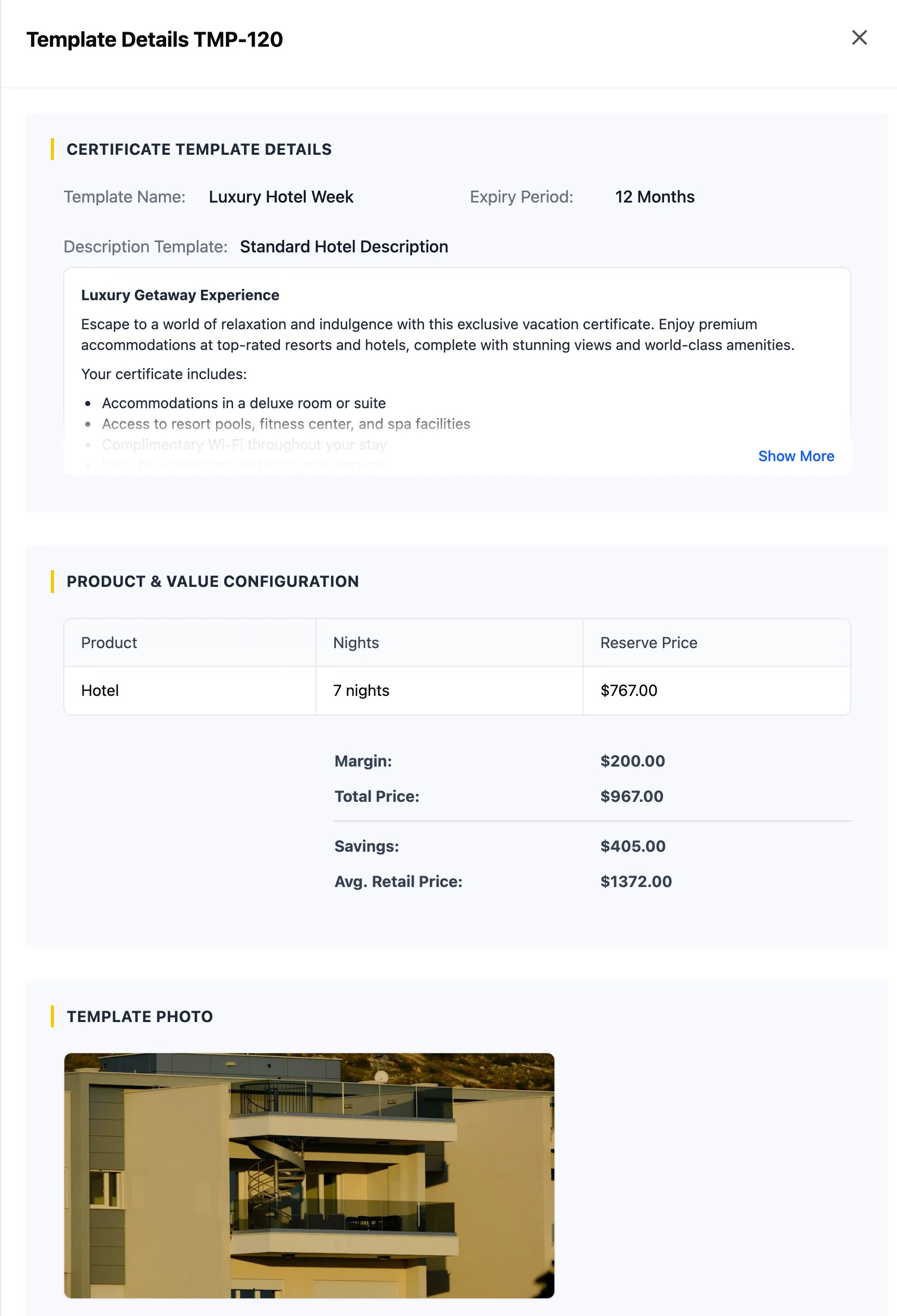
The template saved above, beside the details page members see for it. The same numbers mark the same fields.
-
Name → The page title, and the card title in the catalogue.
-
Validity, in months → “Expiry period: 12 month” under the title.
-
Description template → The description, word for word. Every template that shares it changes with it.
-
Product and nights → The item chip under the title, hotel for 7 nights, and the first line of the price details.
-
Total price → The certificate's price, $967.00. Reserve price and margin stay in the back office.
-
Average retail price → Struck through in the price details, beside the estimated saving. The page counts that saving against the total with taxes, $998.
-
Photo, cropped to 2:1 → The hero of the page, the catalogue card and the landing.
Not on any member page: reserve prices, margin and internal notes. The club sites decide where the page exists at all; the terms and conditions appear at purchase.
04 / After the sale
After the money moves,
the price stops moving.
Once a certificate exists, someone has paid for it or been promised it. From then on, the back office keeps two lists apart: what an admin may still fix, and what nobody may change.
Issuing by hand
Most certificates are bought on a club site. Some are issued in the back office: the admin picks a template, and its terms come with it.
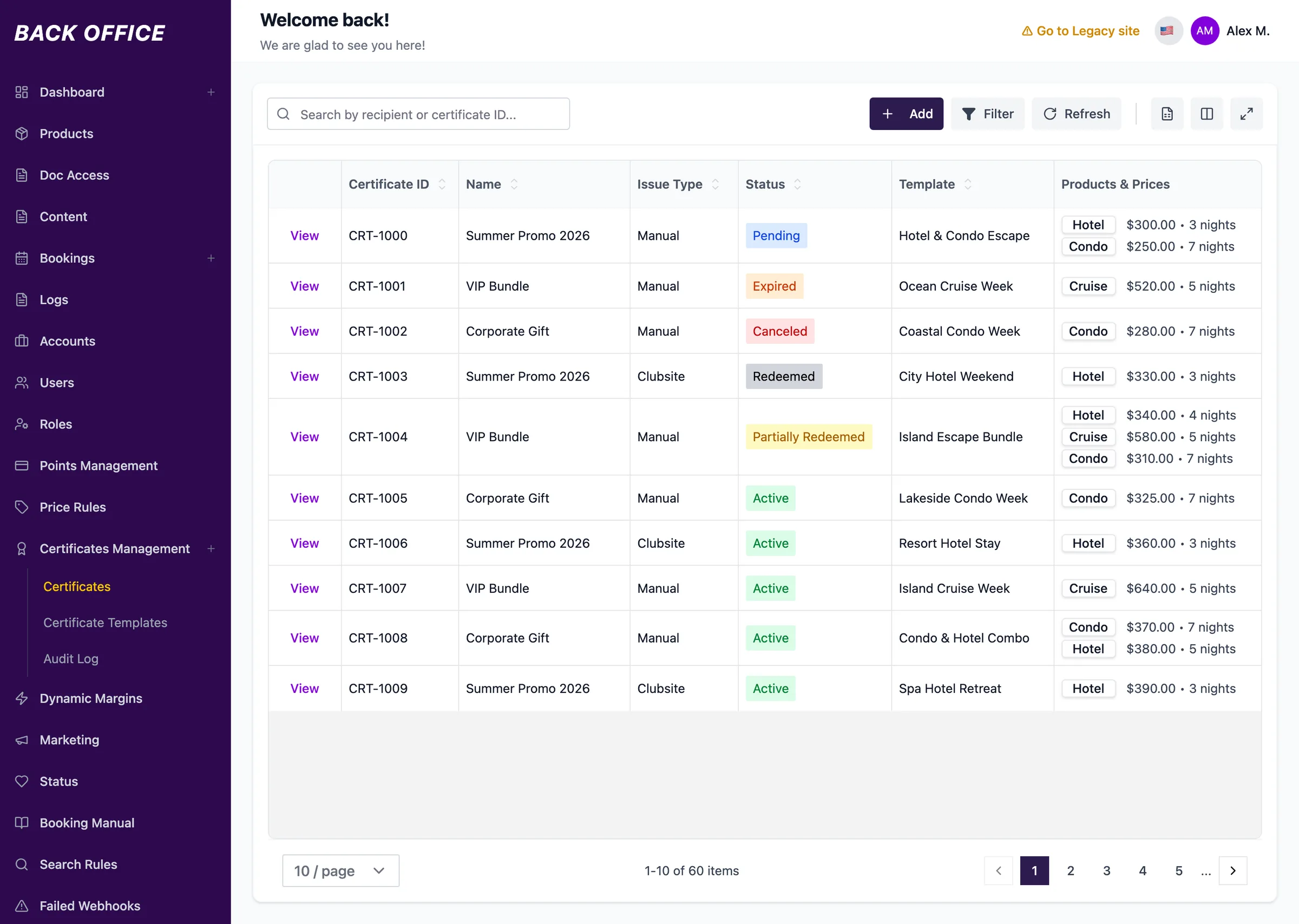
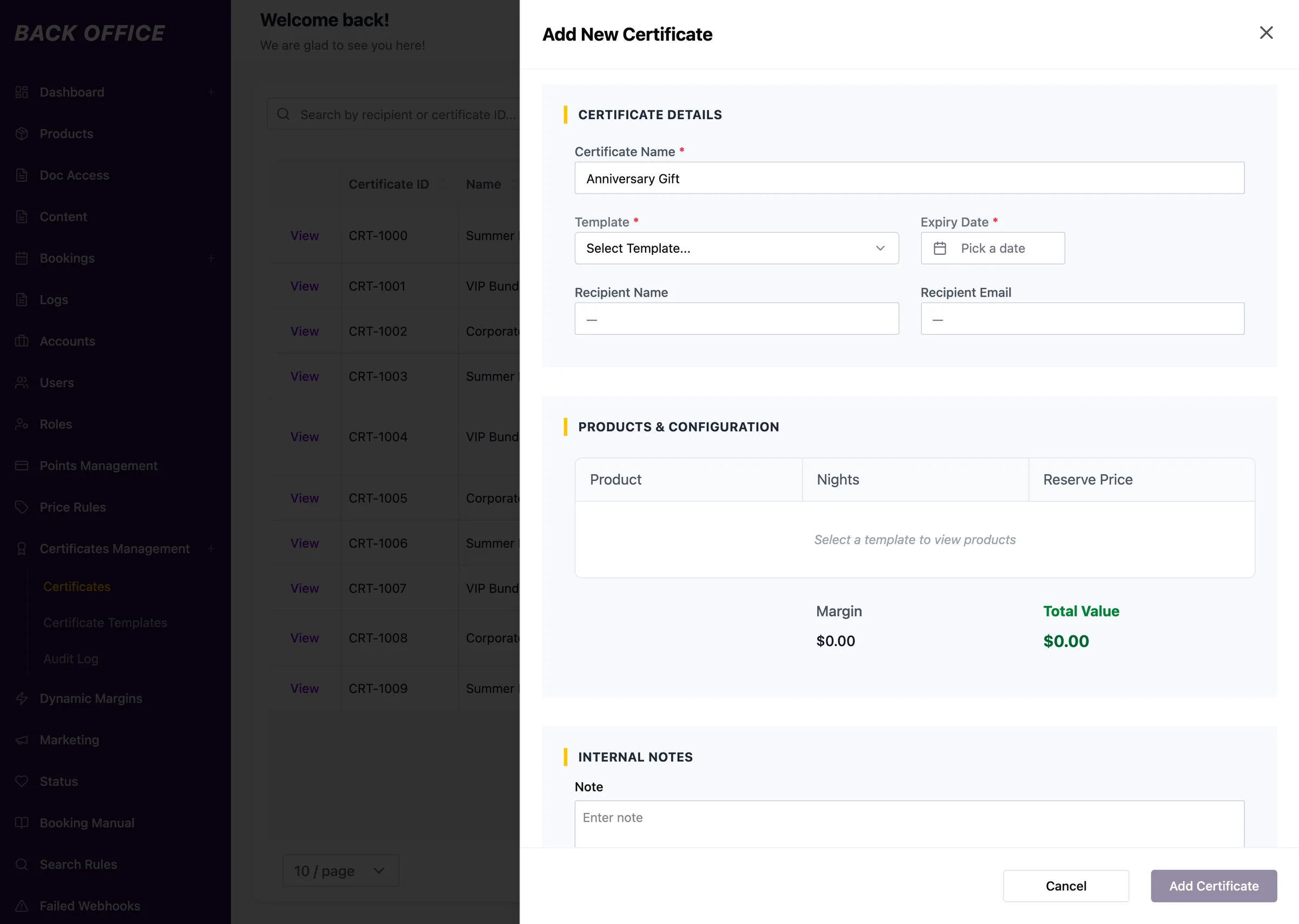
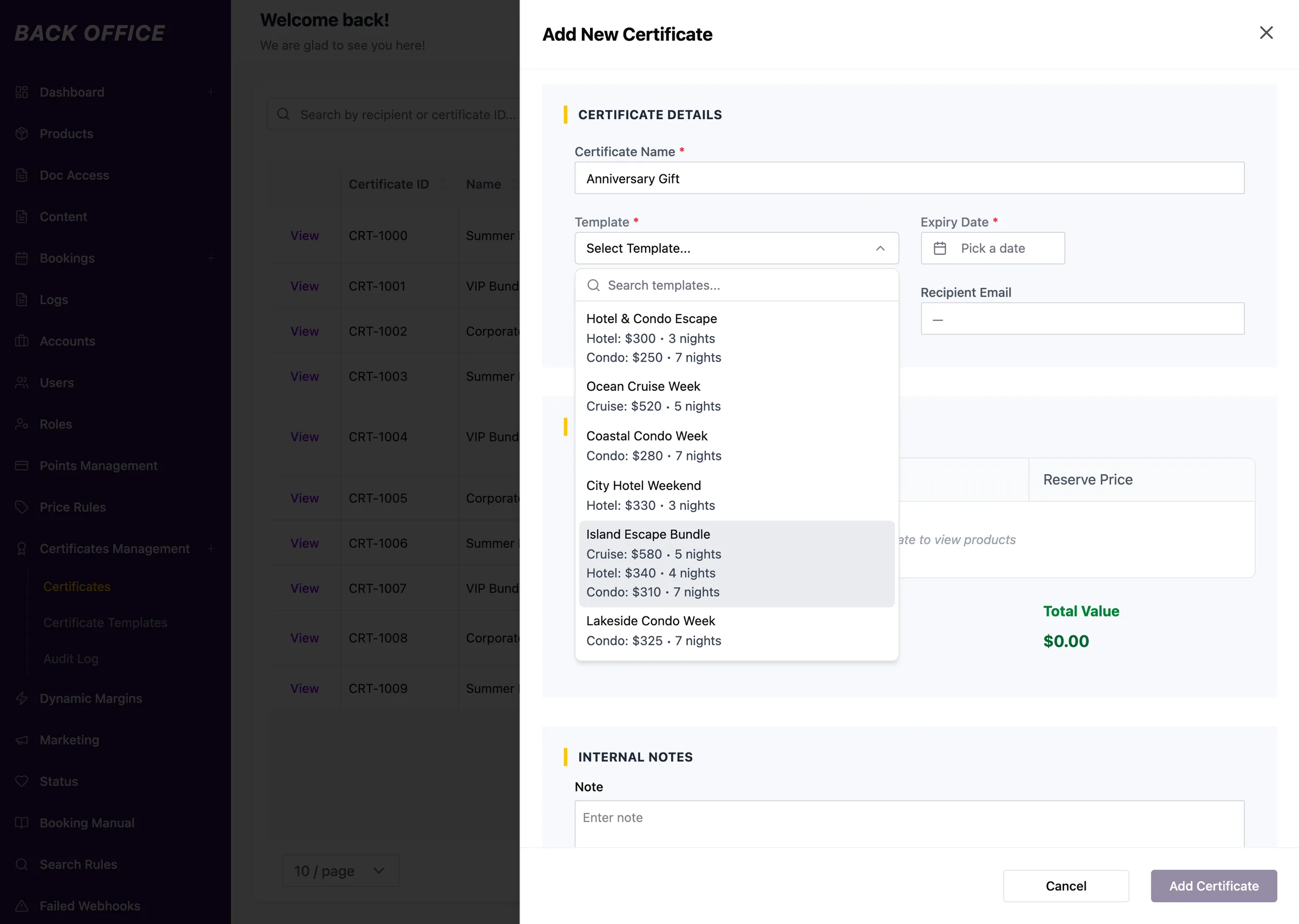
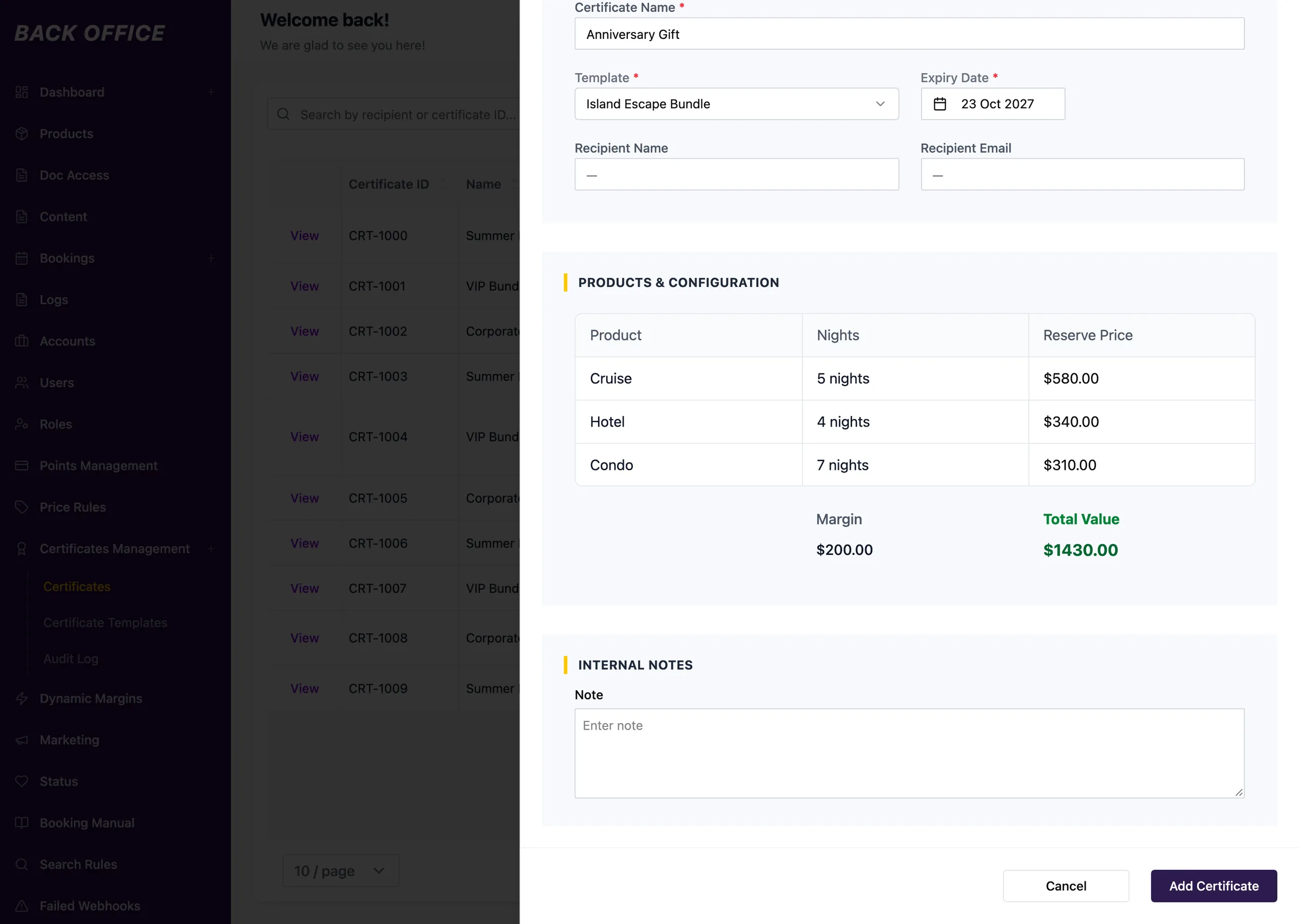
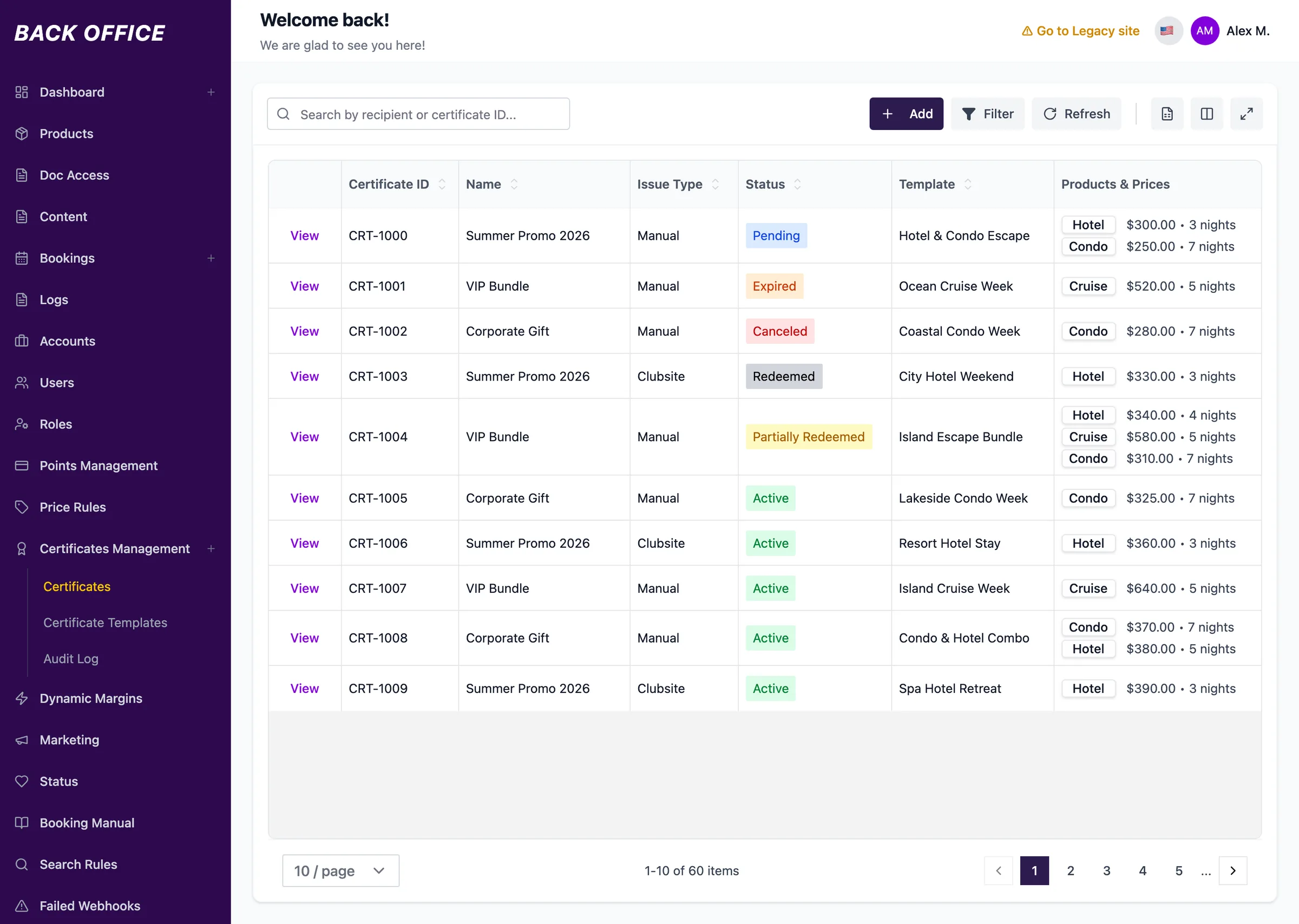
Step 1 of 4
Certificate list
Every certificate: ID, name, how it was issued, its status, template and products. A certificate can also be issued by hand, with Add.
The certificate drawer
Two zones. Name, recipient and expiry stay editable. Items, nights, reserve prices and each item's status are read-only, and so is the redemption history. Cancel certificate sits apart from Cancel and Save, in red.
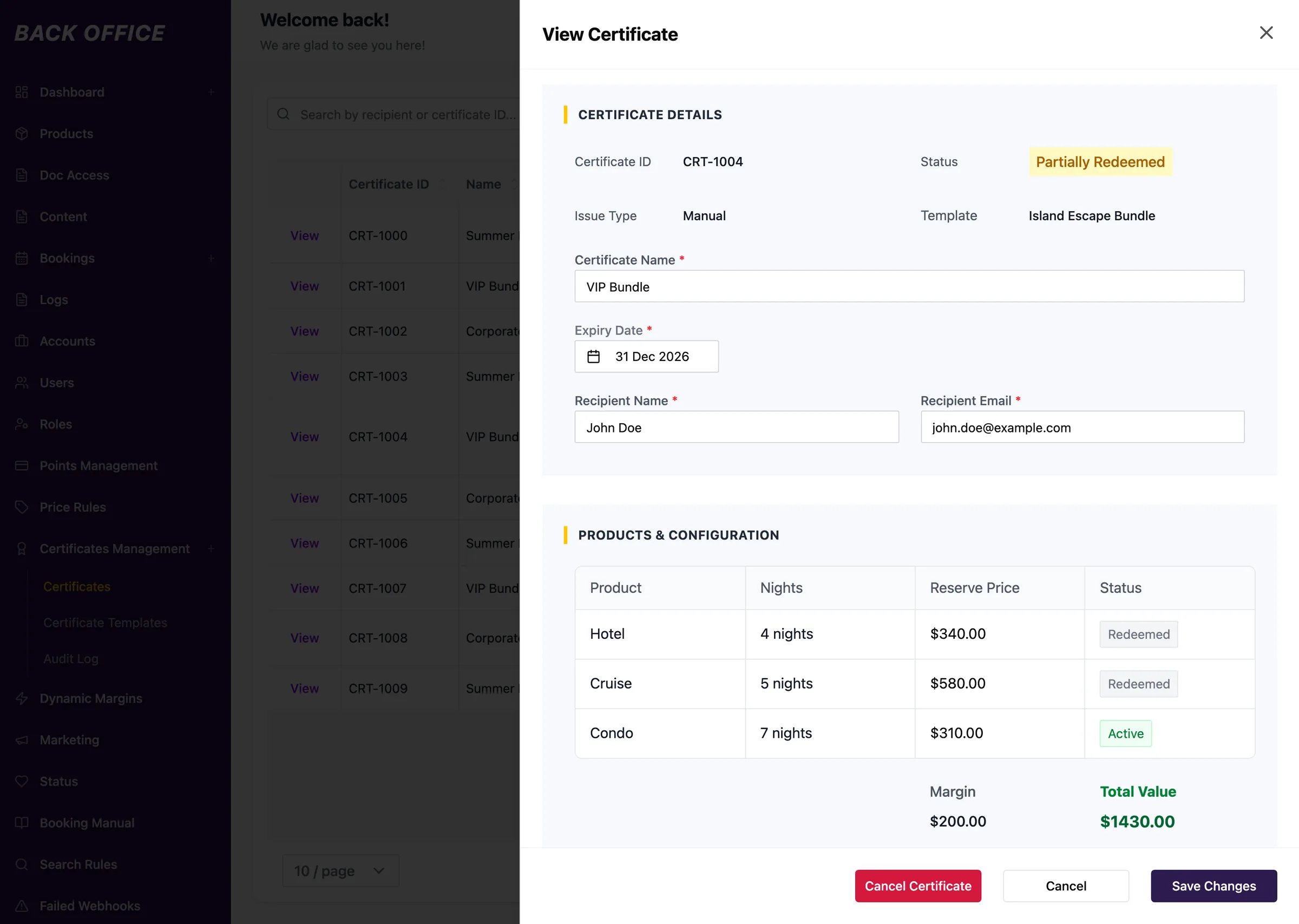
- Marker 1: Editable: name, expiry and recipient.
- Marker 2: Locked: items, nights, reserve prices and each item's status.
- Marker 3: Cancel certificate, apart from Cancel and Save.
Cancelling
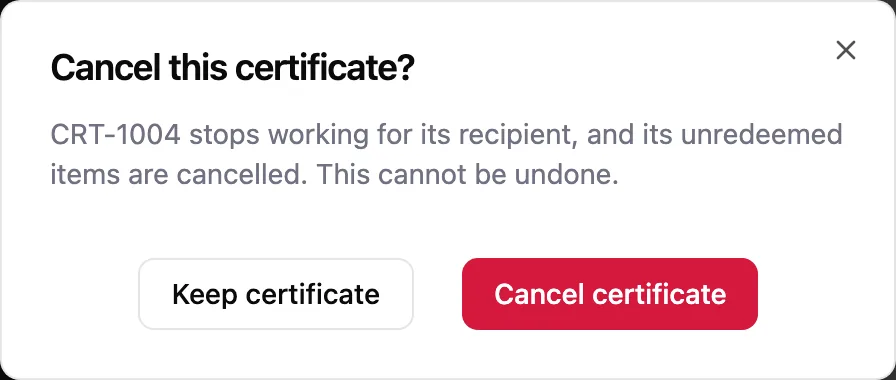
Cancelling asks first. The dialog says what the recipient loses and that it cannot be undone, and its buttons say what they do: Keep certificate, or Cancel certificate, in the drawer's red.
The audit log
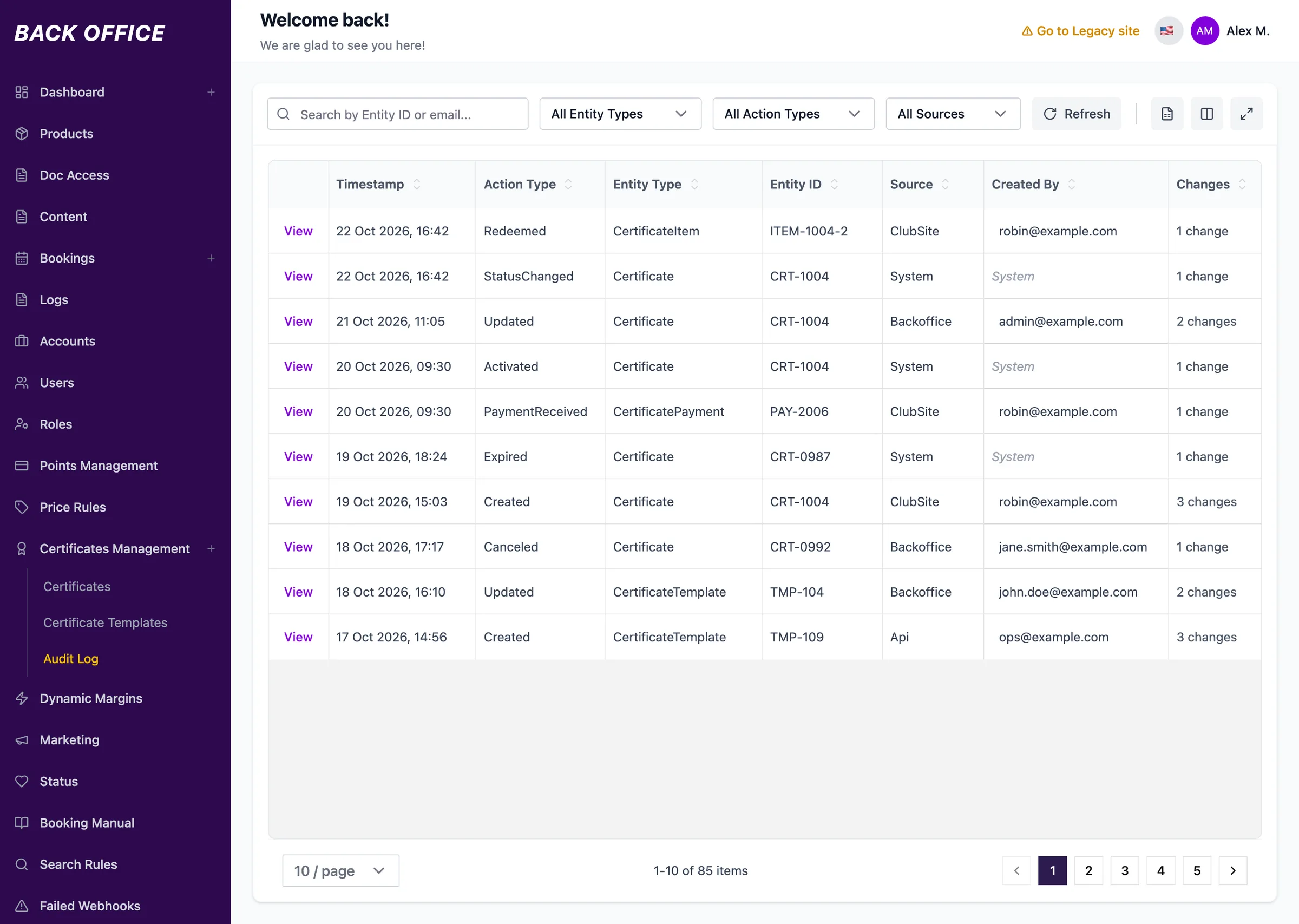
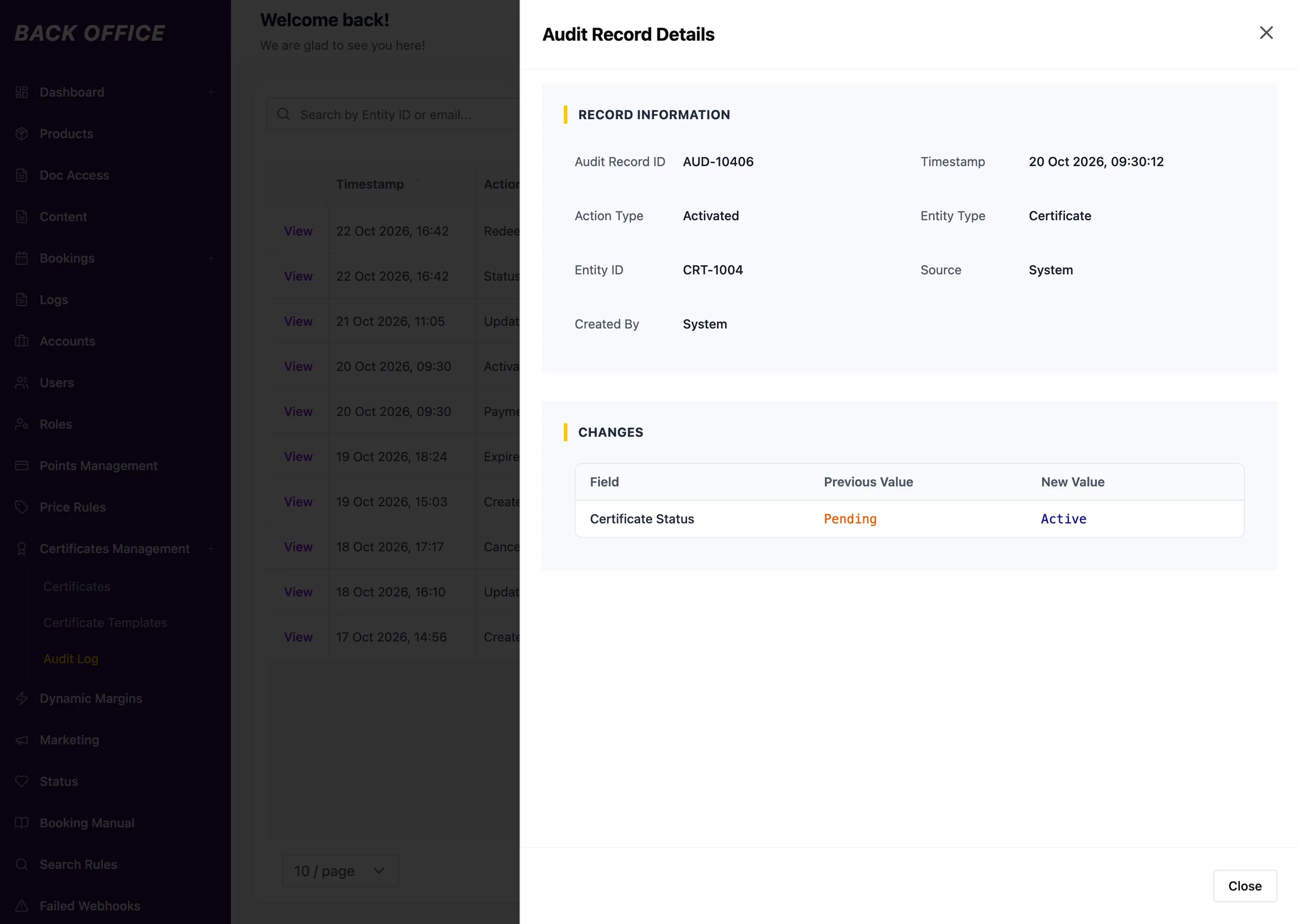
Every change writes an entry: what changed, on which record, from which source (back office, club site, API or the system), by whom and when. A question like “who activated this certificate?” is answered by the record itself.
Step 1 of 2
The log
One certificate's week, newest first: created on a club site, paid, activated by the system, its recipient corrected in the back office, an item redeemed.
05 / The member's path
What you own, what it covers,
when you can use it, what you'll still pay.
Every member-facing step answers the same four questions. They decided what each page shows, and what it leaves out.
Step 1
Landing
The landing page explains the idea in three steps: choose a certificate, pay today, redeem when you're ready. Then it lists what a certificate does and shows the most popular ones.

Step 2
Catalogue
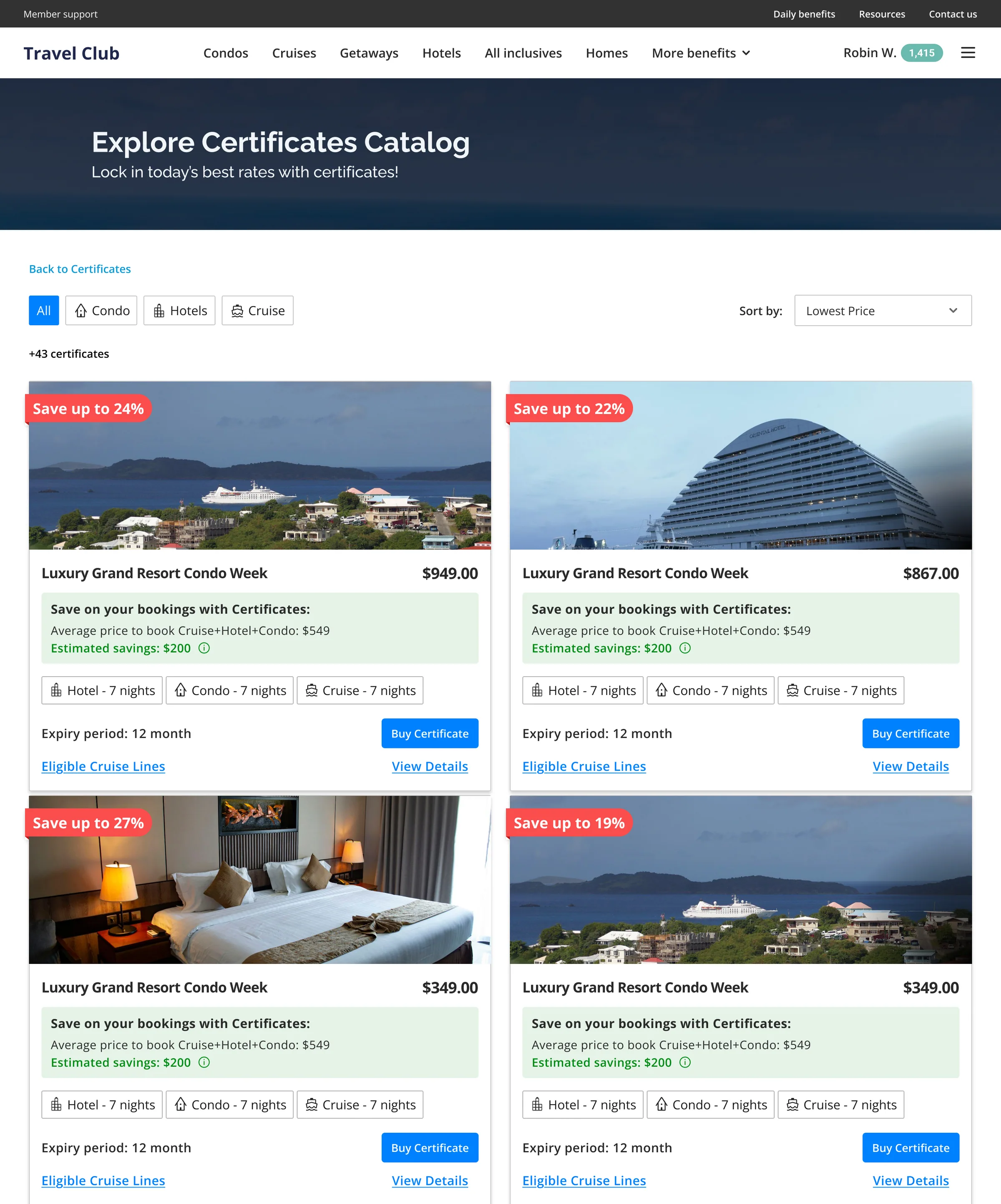
Only published templates appear. Each card carries the four answers in order: what the bundle covers, what it costs, the estimated saving against average retail, and how long it stays valid. Product filters narrow the grid to hotels, condos or cruises.
Step 3
Details
The details page gives the offer in full and adds the rules. The price block breaks the total down by item and shows the estimated saving. Seven business rules are on the page before any payment step.
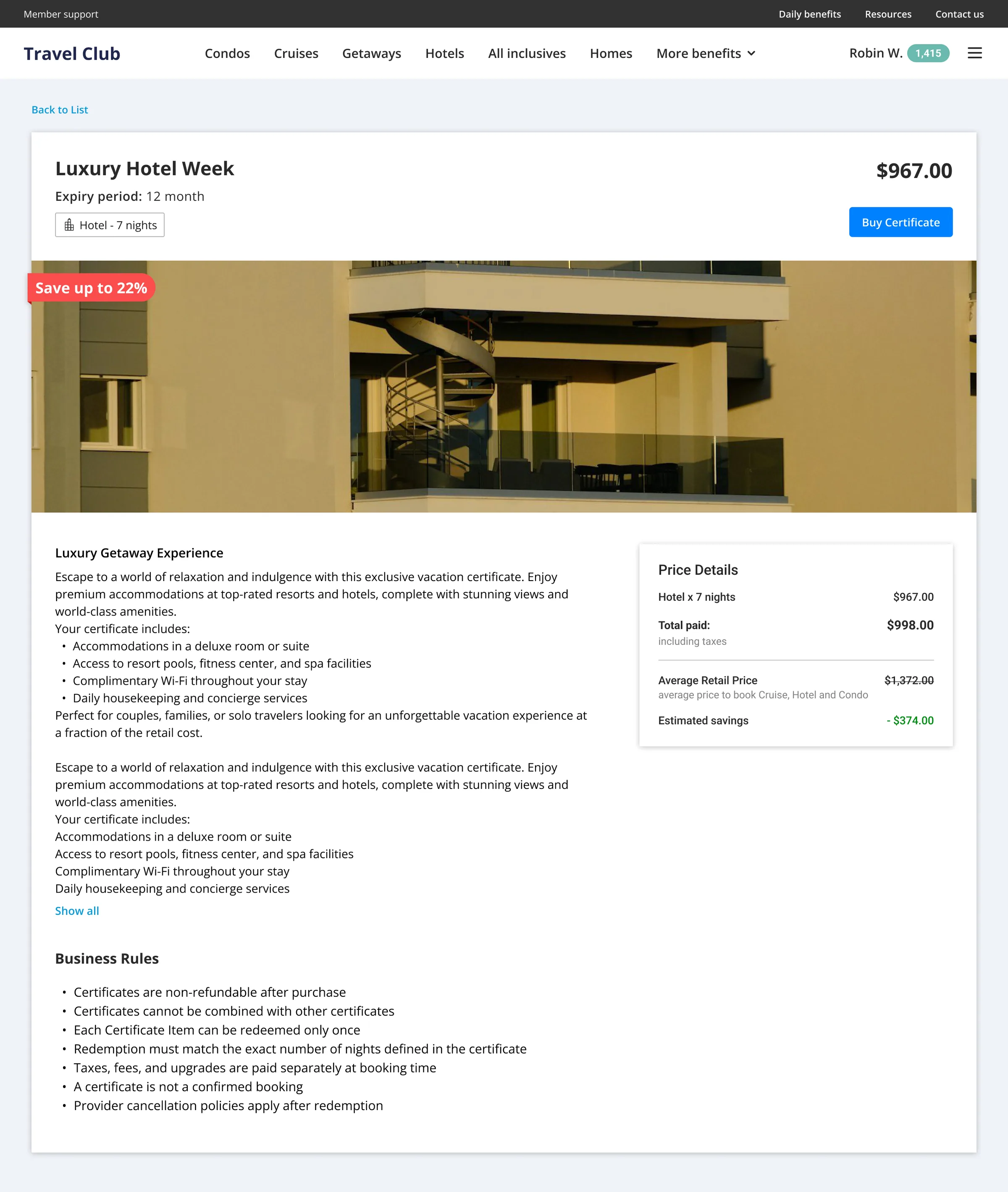
- Marker 1: Price by item, total, and the estimated saving against average retail.
- Marker 2: Seven business rules, before any payment step: non-refundable, not combinable, each item redeemed once, exact nights only, taxes and fees extra, not a booking, provider policies apply.
Step 4
Purchase
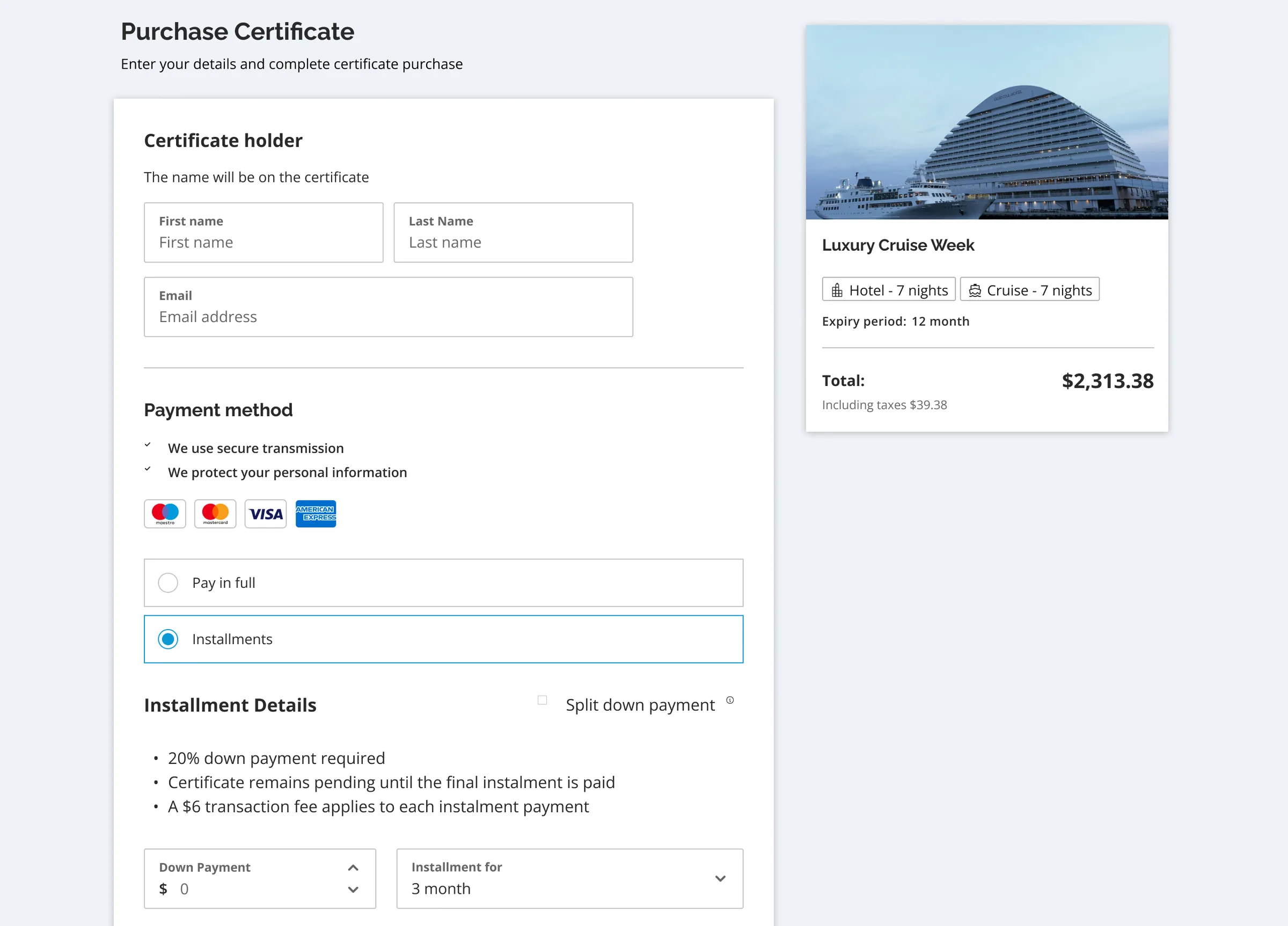
Four ways to pay: in full; in full across two cards; in instalments with at least 20% down; or in instalments with the down payment split across two cards.
The instalment option states its terms next to the form: 20% down, a fee on each instalment, and pending until the last instalment is paid.
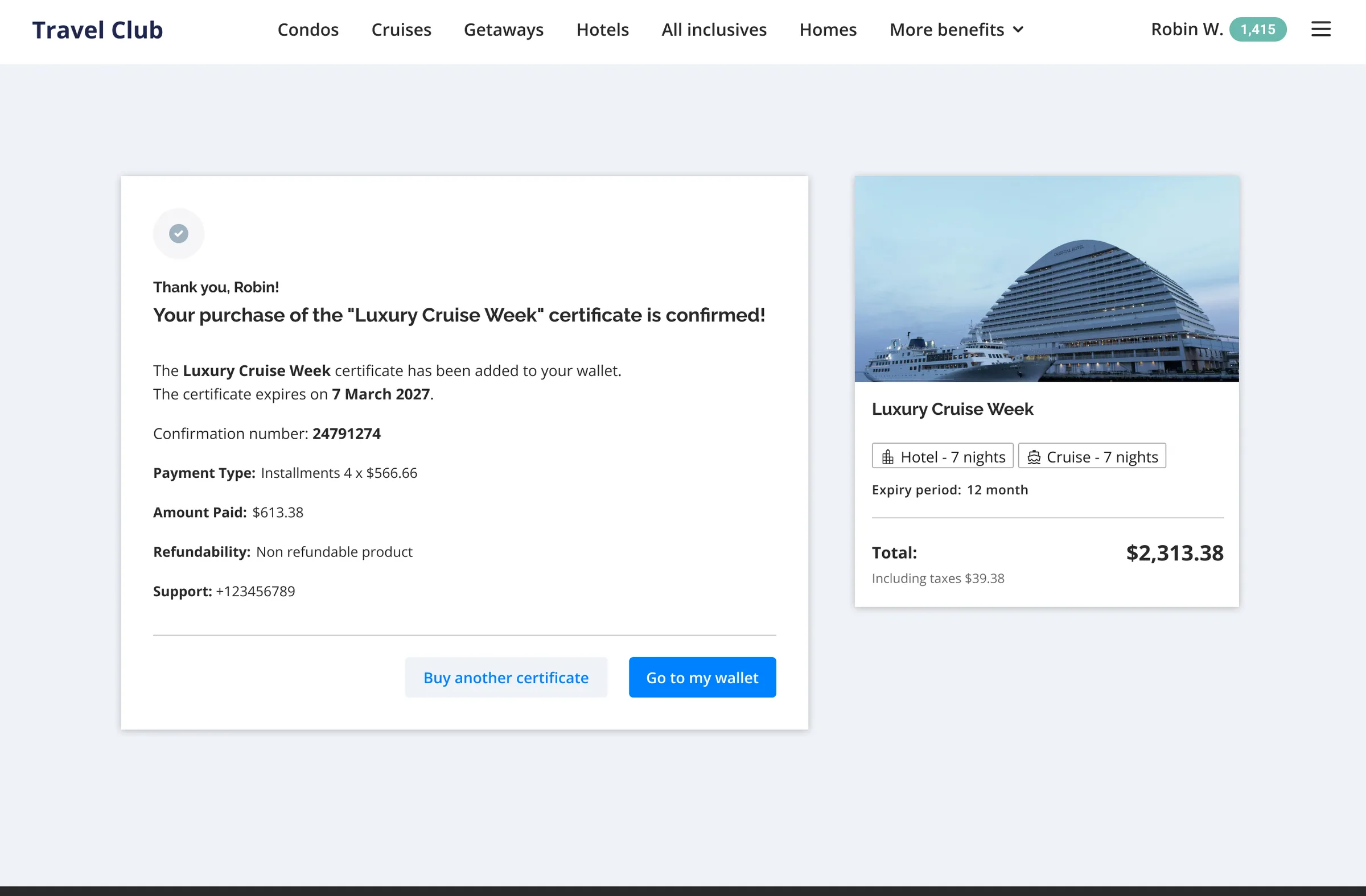
Paid in full, the certificate is active straight away. After a down payment, it is pending. A failed or abandoned payment creates nothing.
Step 5
MyWallet
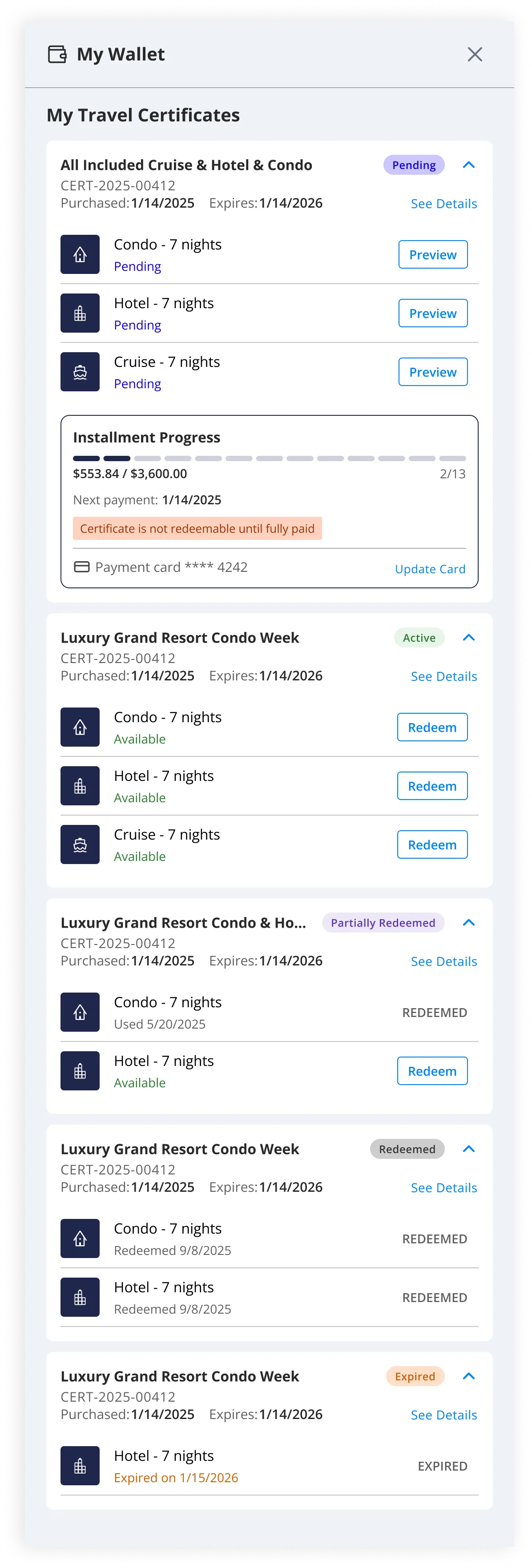
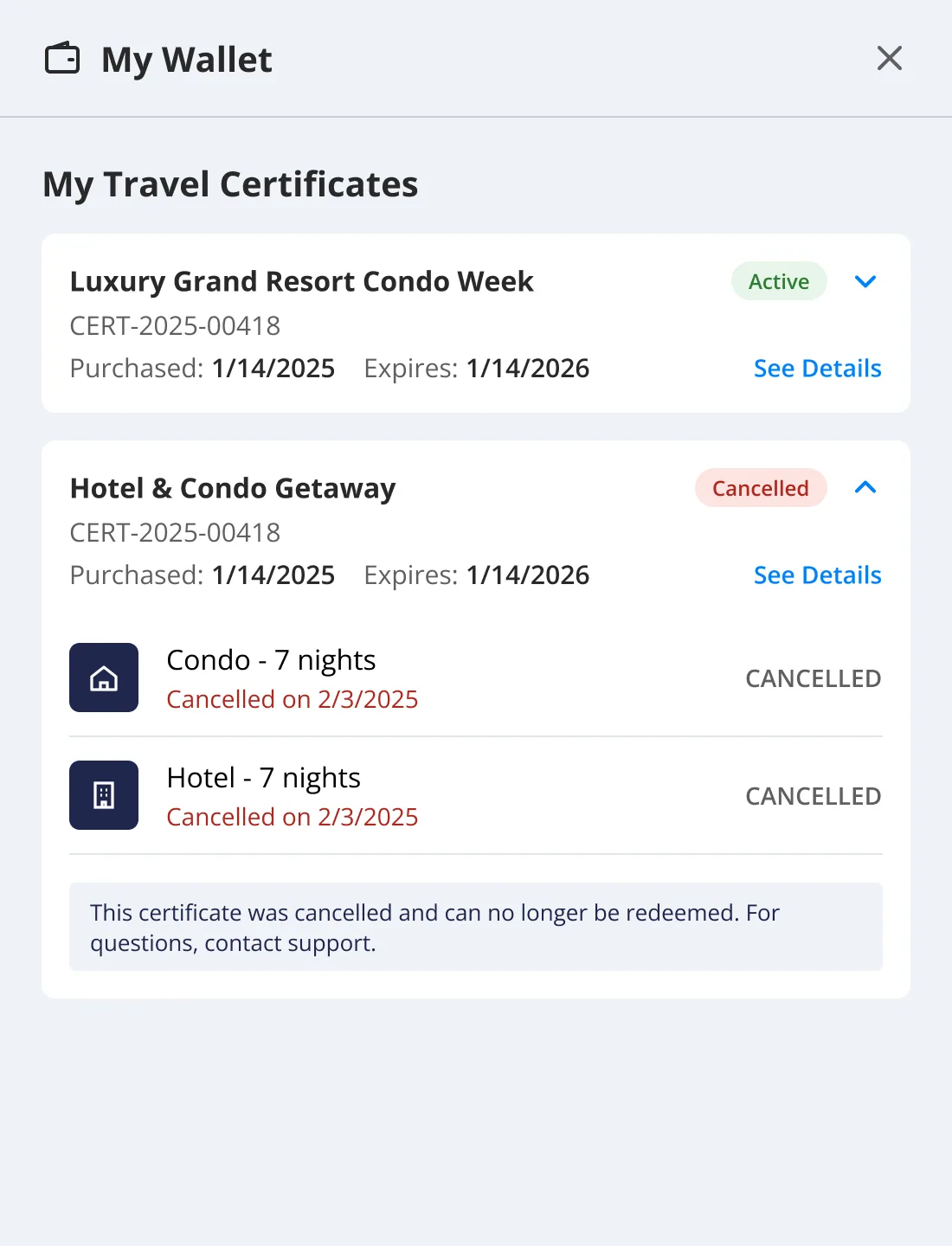
MyWallet opens as a drawer over the current page, one card per certificate. Expanded, a card lists its items, each with its own status. Redeem appears only on an item that can be redeemed; everywhere else the status explains itself.
A certificate bought in instalments appears at once, as Pending, with its instalment progress and a plain “not redeemable until fully paid”. Its items offer Preview instead of Redeem. The payment card can be replaced in place.
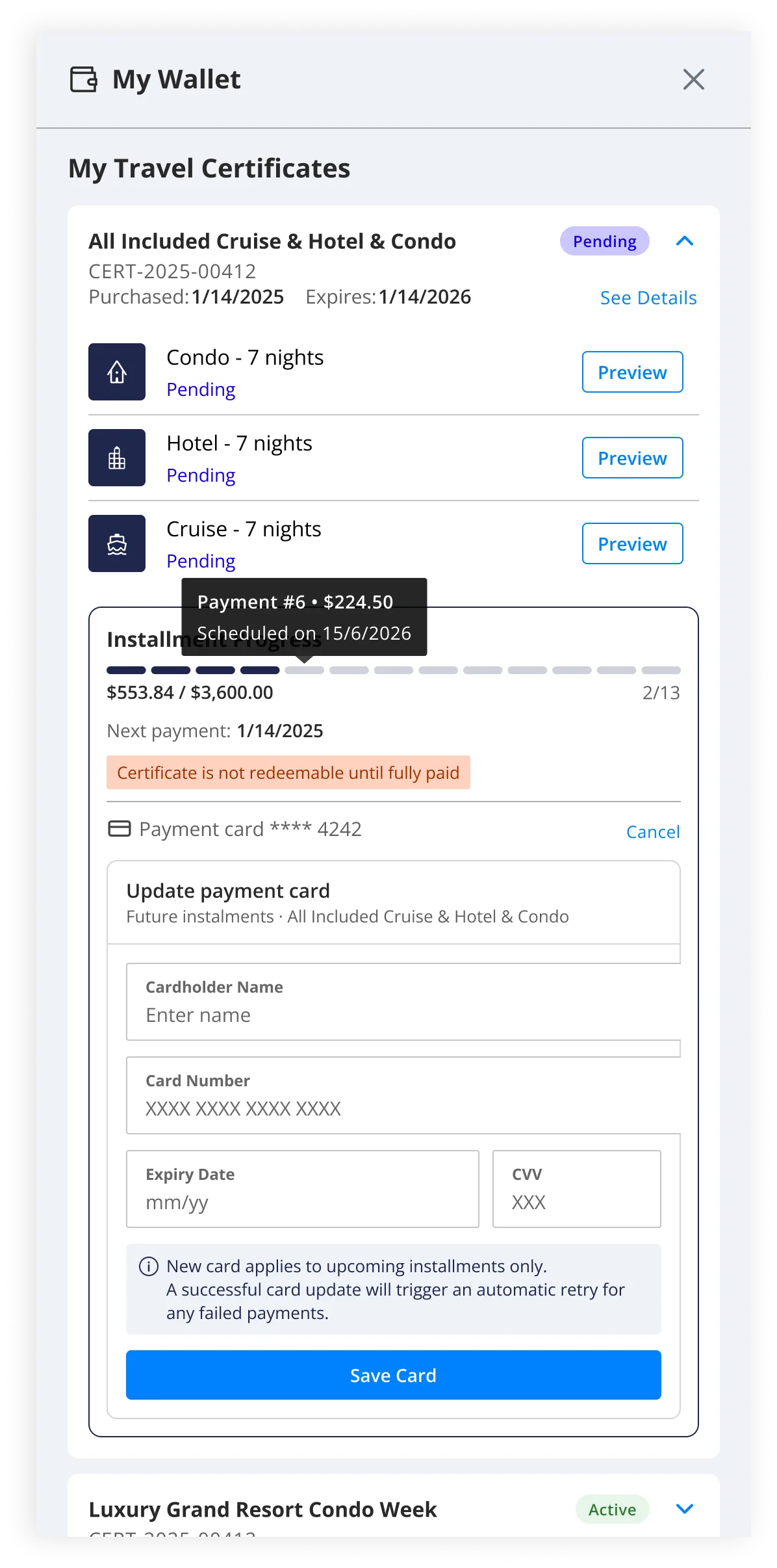

Each segment of the instalment bar: scheduled, paid or failed.
Step 6
Booking with a certificate
Search gets a certificate selector, with the first eligible certificate already applied, and results narrow to where it can be used. From then on, every price is what the member will pay after the certificate. A stay it fully covers shows $0.00, with “Certificate applied” beside the price.
Retail prices, savings and comparisons are left out. Price filters and price sorting are hidden too: they would rank stays by numbers the member is not paying.
The certificate covers accommodation only, so checkout splits the total into what is paid now and what is paid at the property.
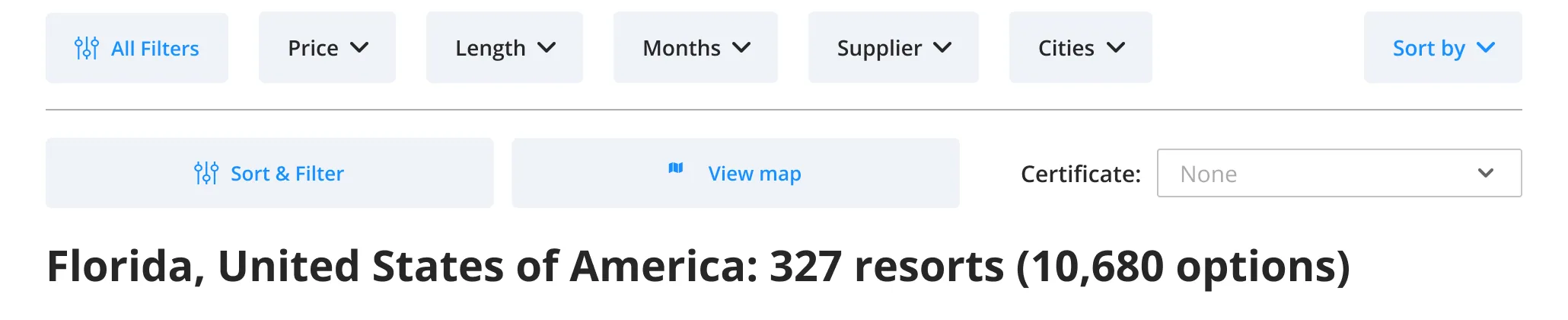
No certificate: the Price filter is there.
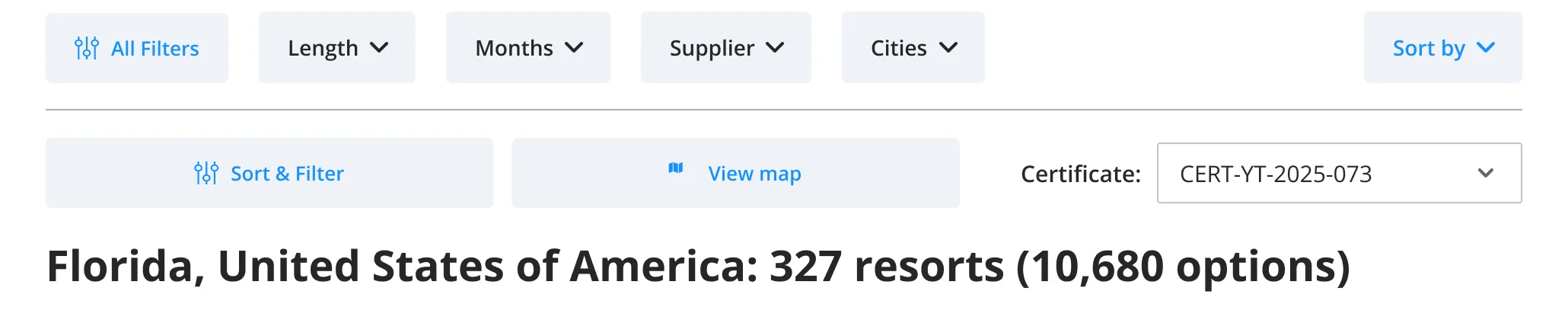
Certificate applied: the Price filter is gone.
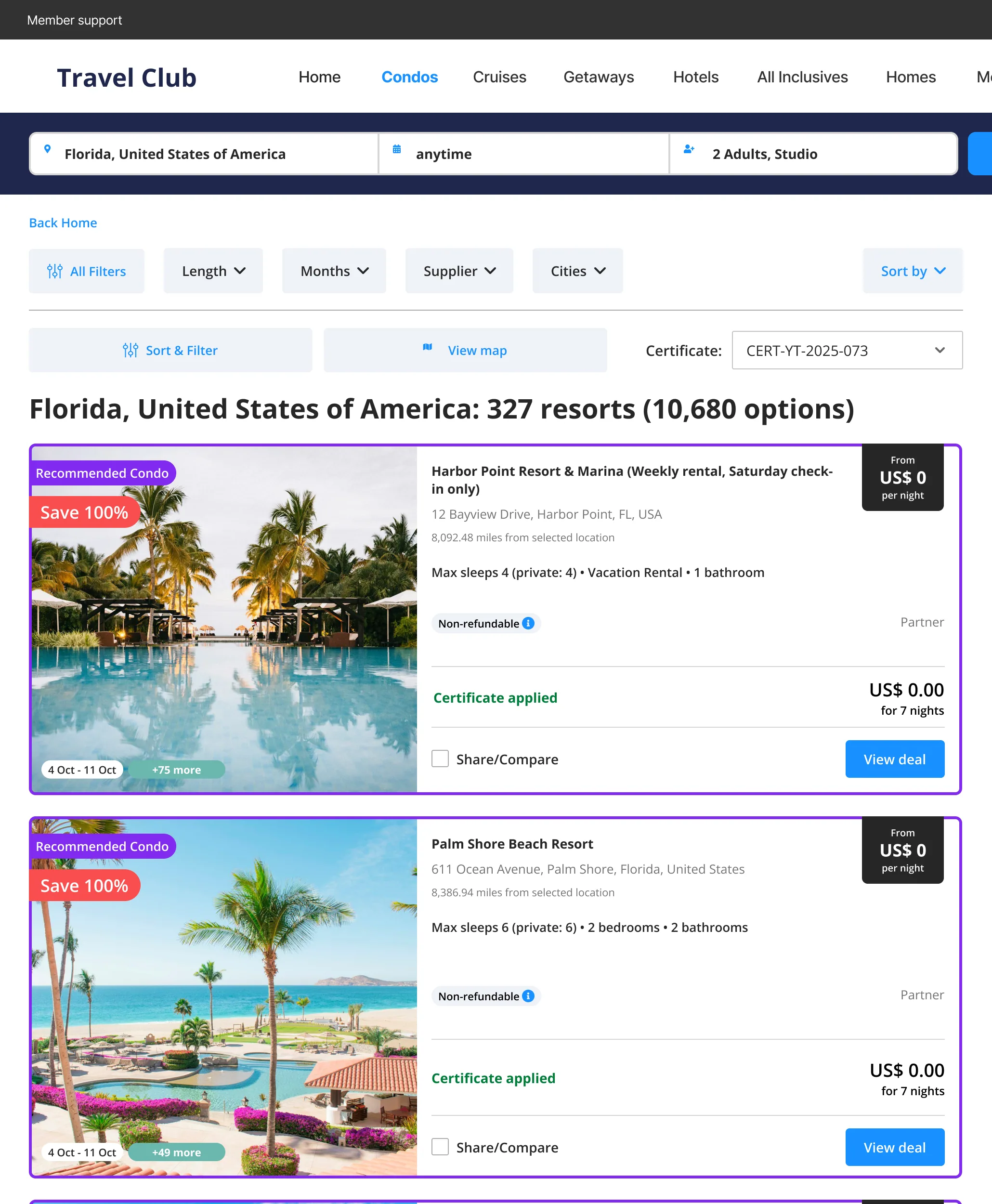
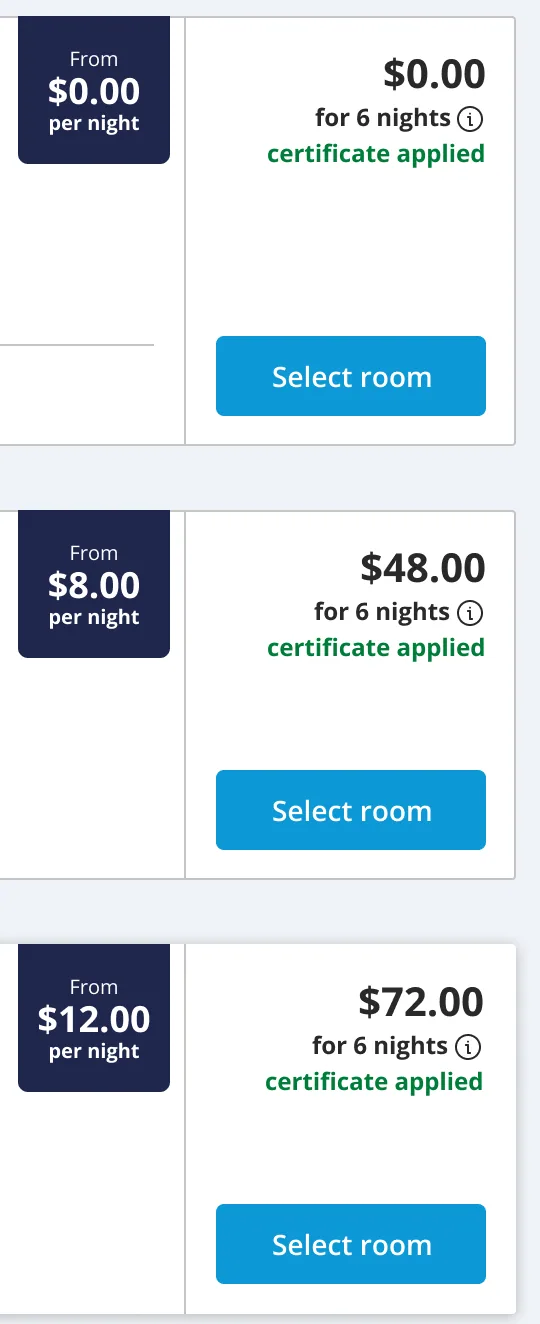
Prices after the certificate.
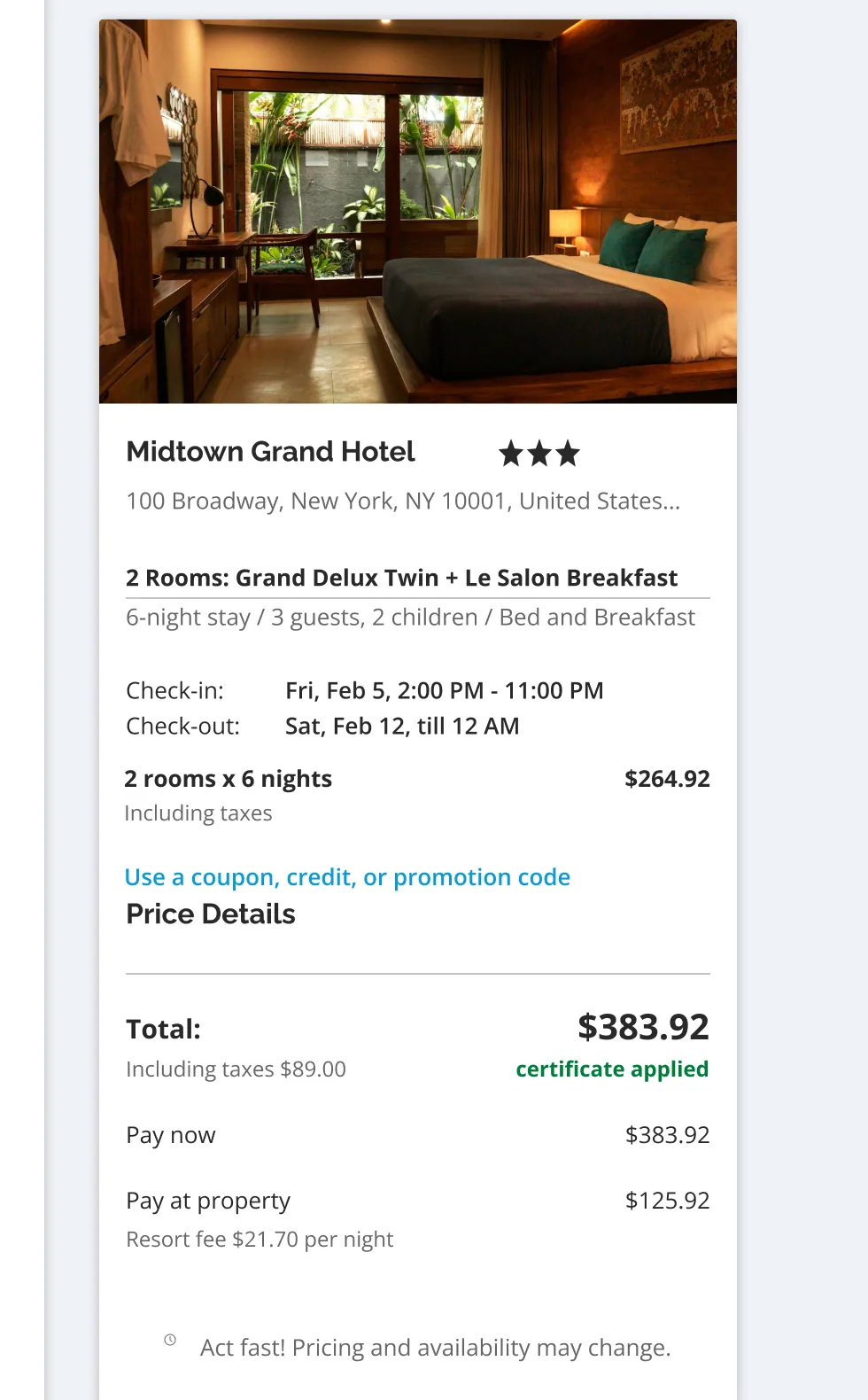
Pay now, and pay at the property.
Step 7
Preview and demo
Two later change requests opened the booking flow to members who cannot book yet. Search, results and prices work as in step 6; only checkout stays closed. A banner says so on every page, one dialog explains it on the way in, and another stops the booking at checkout and leads back to search.
Preview opens from a pending certificate in MyWallet. Demo is the same flow for a member who has no certificate yet.
| Preview | Demo | |
|---|---|---|
| For | A member paying in instalments | A member with no certificate |
| Prices | Their own certificate's, at real rates | A sample certificate's, to show the discount |
| At checkout | Booking opens once every instalment is paid | An active certificate is needed, and a representative sells one |
Demo uses the same screens and dialogs, with its own words.
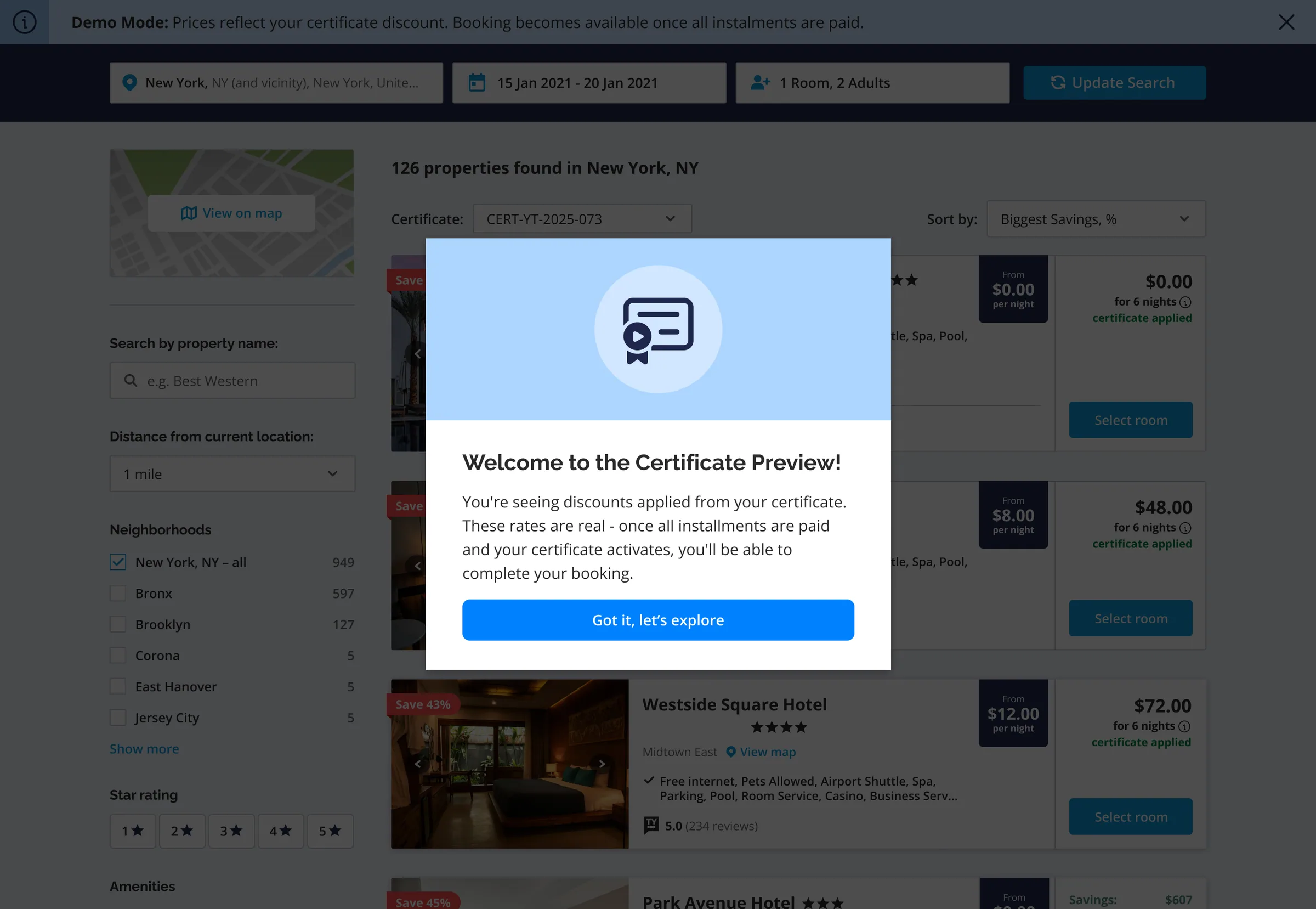
On the way in: real rates, bookable once paid.
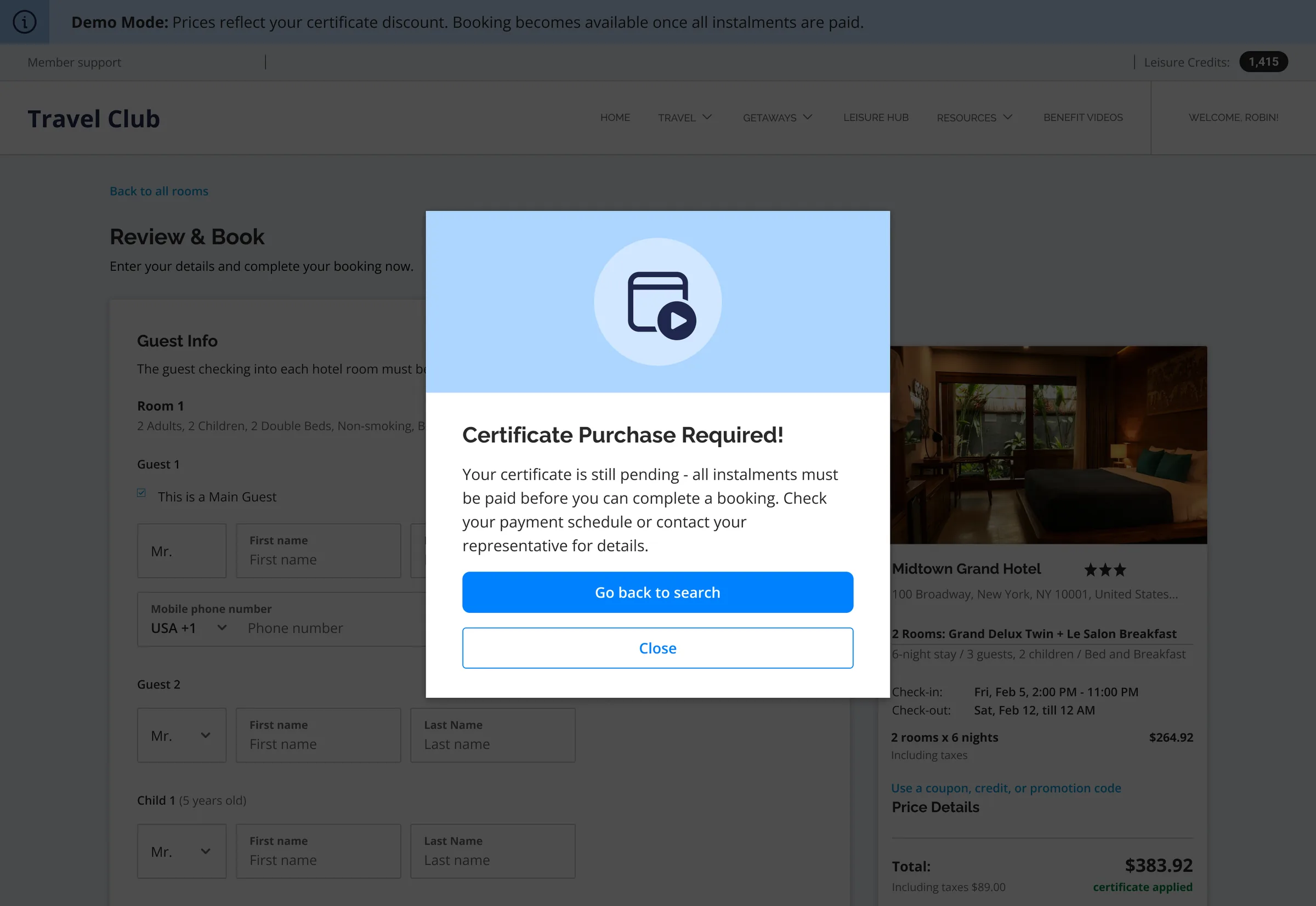
At checkout: the booking waits for the last instalment.
The states nobody hopes to see
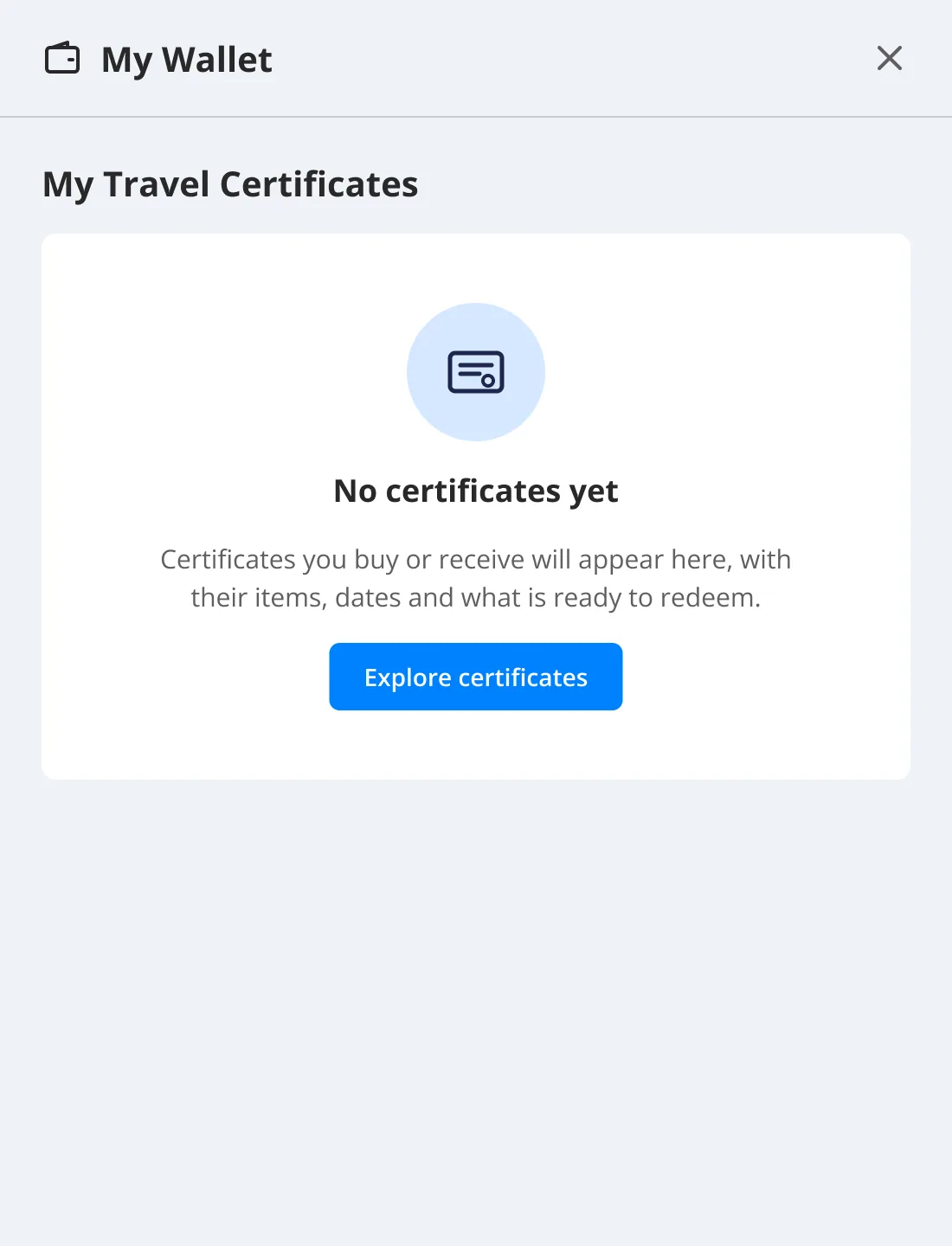
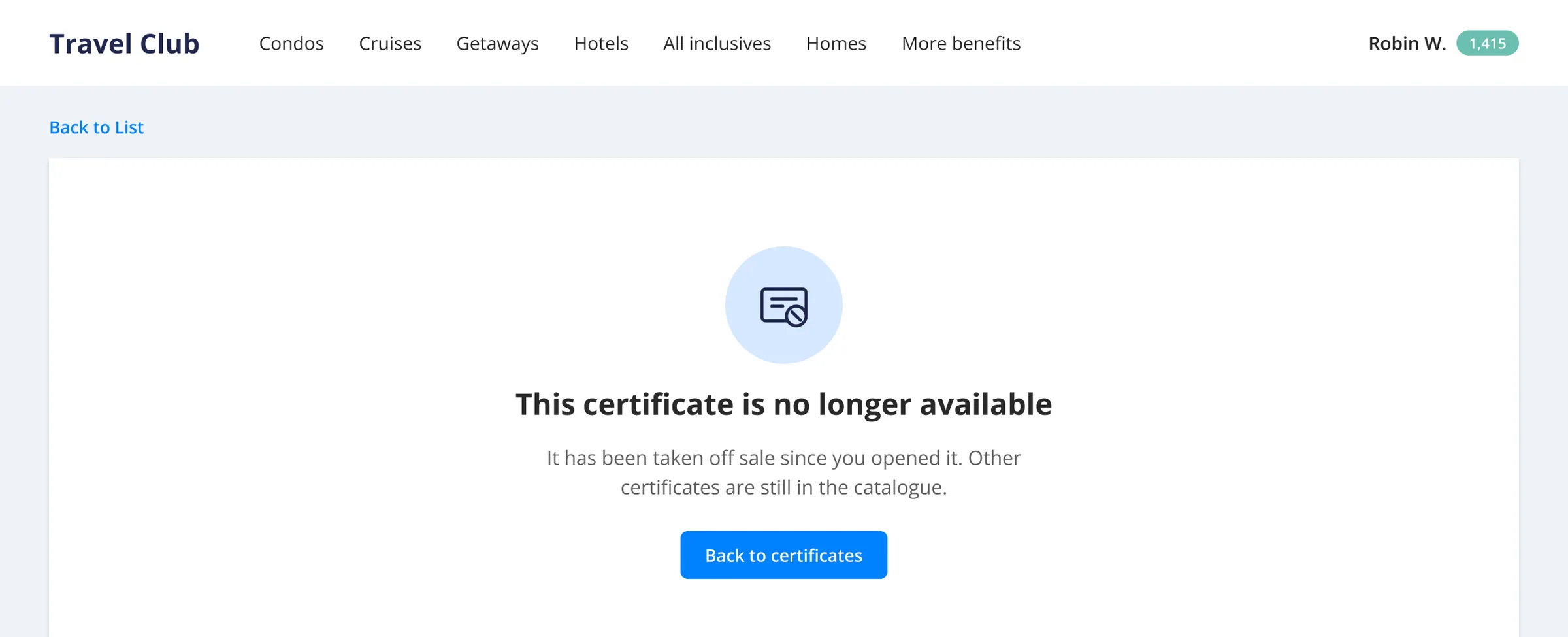
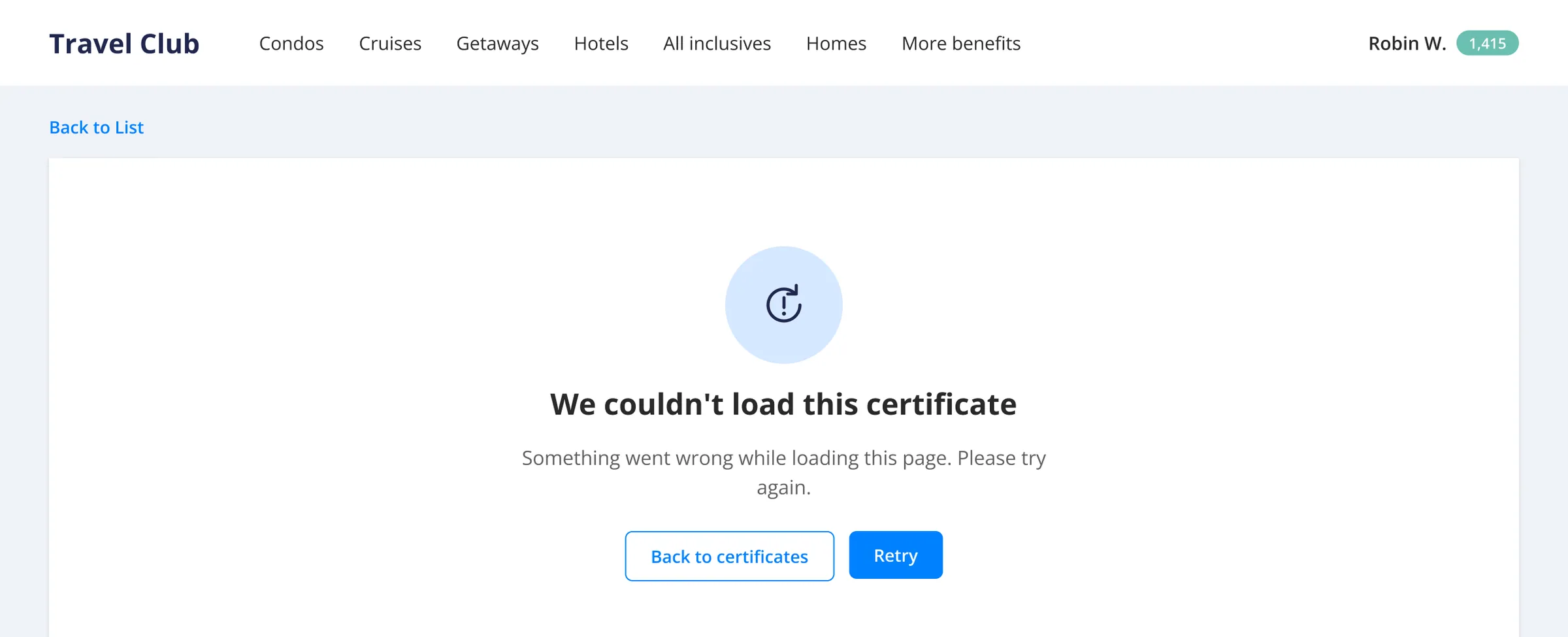
The requirements also asked for these. A member with no certificates gets an empty wallet that leads to the catalogue. A certificate the business cancelled stays in the wallet, marked as cancelled and with no actions. A template unpublished while a member reads its details page says it is no longer available and offers the way back. A page that fails to load says so and offers Retry.
06 / Program health
Sales are half the story.
The other half is what's still owed.
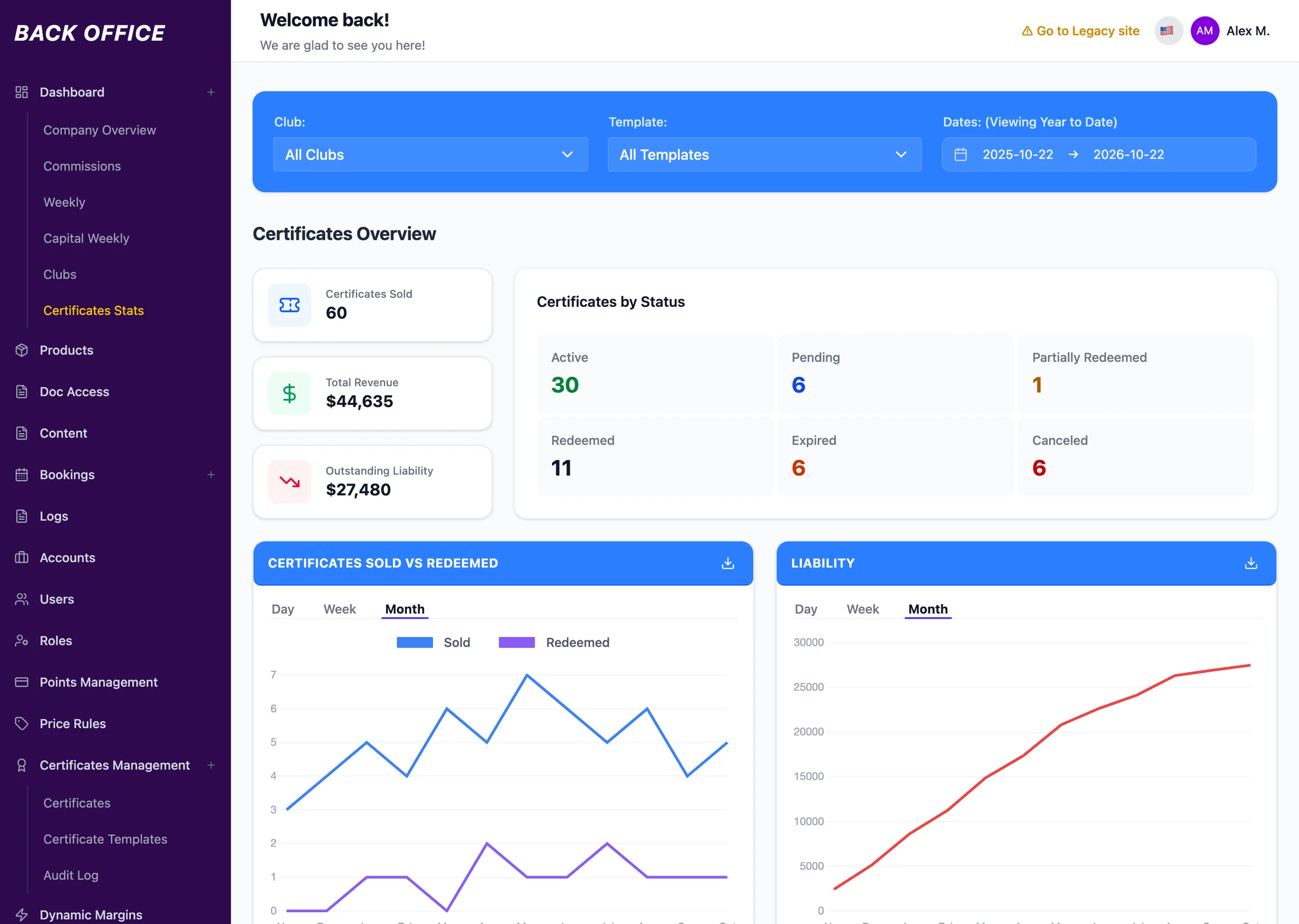
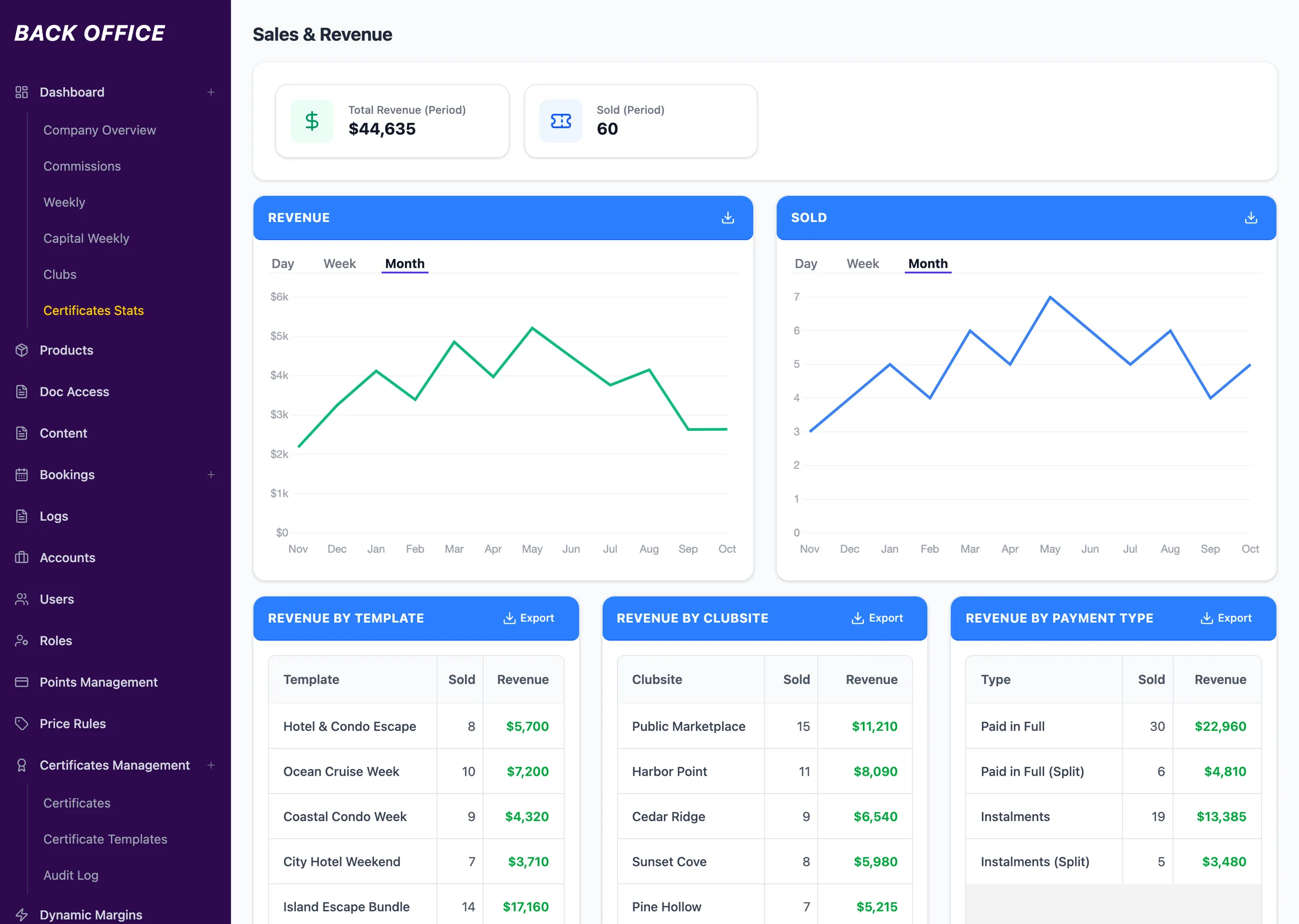
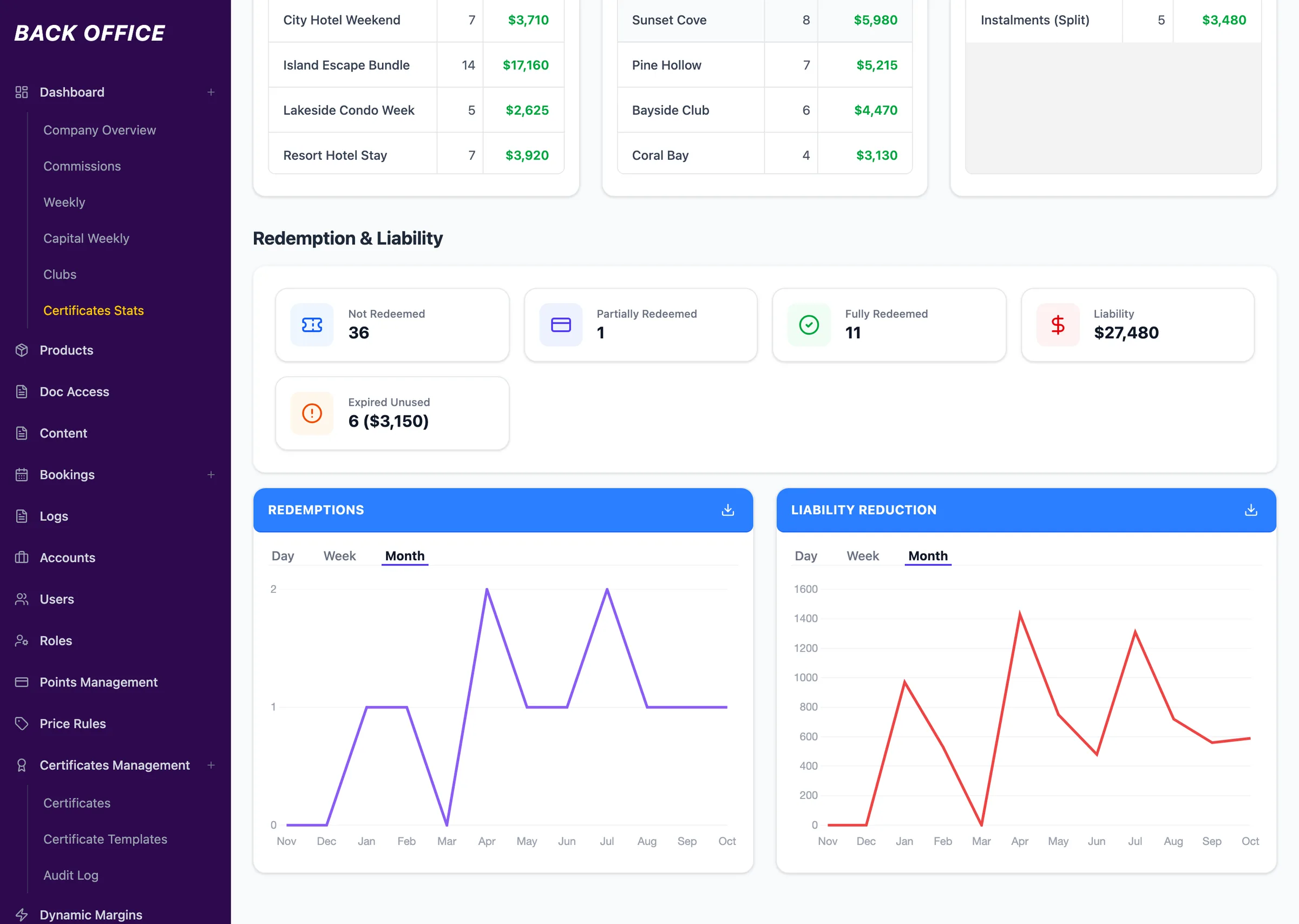
Every unredeemed night is a promise the business has already been paid for. So the statistics put outstanding liability next to sales, as a headline number. Every view filters by club site, template and dates.
Step 1 of 5
Overview
Sold, revenue and outstanding liability, side by side. Counts by status. Sold against redeemed, and liability, month by month.
Figures are fictional prototype data, rewritten so they add up.
07 / Decisions
Four decisions
behind the screens.
-
The template is the single source.
- Signal
One offer had to appear on many club sites, in a card, a details page and a checkout summary, and the person writing it is not an engineer.
- Decision
Every member-facing surface renders from the template. While setting costs, the admin already sees the member-facing total, average retail and saving.
- Trade-off
No tailoring per certificate, and no quiet edits. Changing a live template means pausing it on every club site it is live on, and the admin is told how many before it happens.
- Where to see it
-
One price language inside the booking flow.
- Signal
The flow was built to show savings against public prices. With a certificate applied, those numbers no longer describe what the member pays.
- Decision
Show the price after the certificate, everywhere. Drop retail prices, savings and comparisons, and hide price filters and price sorting.
- Trade-off
The savings story leaves the booking flow. It lives in the catalogue and on the details page, where the member is still deciding.
- Where to see it
-
Pending is a visible state.
- Signal
Instalment buyers pay for months before they can redeem.
- Decision
The certificate appears in MyWallet at once, with progress, a plain “not redeemable until fully paid”, a card update and Preview.
- Trade-off
More states to explain. In return, members can see what they are paying for. Fewer “where is my certificate?” questions is the expectation, a hypothesis rather than a measurement.
- Where to see it
-
Lock what money depends on, log the rest.
- Signal
Once a member has paid, the terms they bought must not shift, and the business must be able to explain every change.
- Decision
Items, pricing and redemption history are immutable. Name, recipient and expiry stay editable. Every change is audited with its source and field-level values. Cancel is set apart and confirmed.
- Trade-off
A pricing mistake means cancel and reissue, not edit.
- Where to see it
08 / What this page claims
Shipped.
Not measured.
- Requirements came from the client's business stakeholders, through stories written by AltexSoft's business analysts and project managers. I did not run user research for this feature.
- I prototyped the back office in Figma Make, with fictional data. The prototype served both client demos and developer handoff. Its figures were rewritten for this page so they add up.
- The development team implemented the designs. The feature is live on the club's sites.
- I have no adoption, revenue or support figures to report, so this page reports none.
- Client identity and sample data have been anonymized. Photos are replaced with licensed stock images.
09 / What I'd take forward
What I'd take
to the next one.
Model the object before the screens.
Fixing the three lifecycles first turned five months of change requests into one feature, not a pile of pages.
A price is a sentence.
Adding a certificate meant rewriting what every number in the booking flow says, not adding a badge.
What I'd measure next.
How many instalment buyers open Preview, how many certificates are redeemed before they expire, and how fast liability turns into stays.
Have a complex product problem?